
Using the Feed to Post add-on, imported posts can be auto-assigned to newly created and existing categories and tags by setting this up from the feed source's Taxonomies (categories, tags, etc. section).
The add-on allows choosing the settings for post Taxonomies and tags, both on a global level (for all sources) and at the feed source level, and you can even import Taxonomies from RSS feeds into any taxonomy for the specified Post Type. This can be done both on a general level (for all sources) and on a feed source level.
Taxonomies
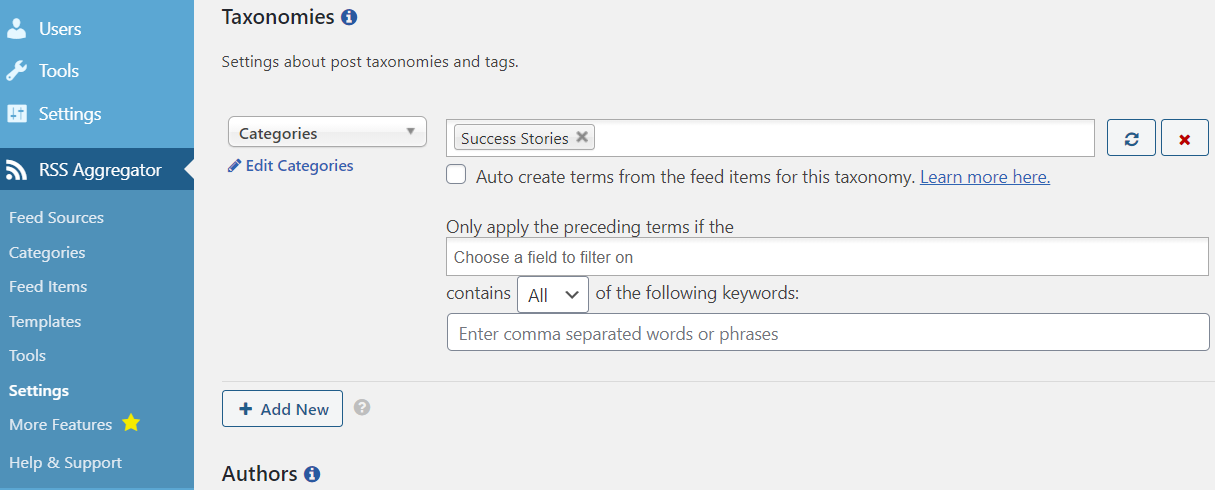
Locating the Taxonomy Options
To locate the taxonomy options, you can either check from:
- Each feed source's Add New Feed Source or Edit Feed Source page. The meta box here allows you to set the tags/categories options for the current feed source.
- The general settings are located under RSS Aggregator > Settings > Feed to Post. From this page, the options you set for tags/categories will apply to all feed sources.
NOTE: The options for both the feed source and the general settings page are merged when importing. This means that both are applied to the posts imported for the feed sources.
Options are separated into sections, so each section is responsible for its own taxonomy option. Each section has fields for taxonomy terms and options on how to filter Taxonomies.
The taxonomy choices follow the standard WP taxonomy architecture, where each Post Type has its own Taxonomies. Changing the Post Type option will cause these options to change as well.
How to Add New Taxonomy Options
- Click on the Add New button to add a new taxonomy section.
- Choose the Taxonomy to use from the drop-down on the left, such as Category or Tags.
- In this drop-down, Taxonomies will show depending on the selected Post Type.
- Then choose the terms for that taxonomy to apply to imported posts.
- The buttons to the very right allow you to refresh the textbox dropdown to get newly added Taxonomies or remove the section. The refresh button is handy if you add or edit terms in another browser tab or window.
- Lastly, you can apply any/all keyword filters for the selected terms.
You can choose to add existing terms using the text-box dropdown field or tick the checkbox below it to auto-create the terms from the original RSS feed.
When you choose the ‘Auto-create terms from the feed items for this taxonomy.’ option, the Feed to Post add-on will look for the <category> tags within the RSS feed. The <category> tag in RSS is how feed items are grouped and the same grouping will be translated into the Post Type’s Taxonomies that you choose.
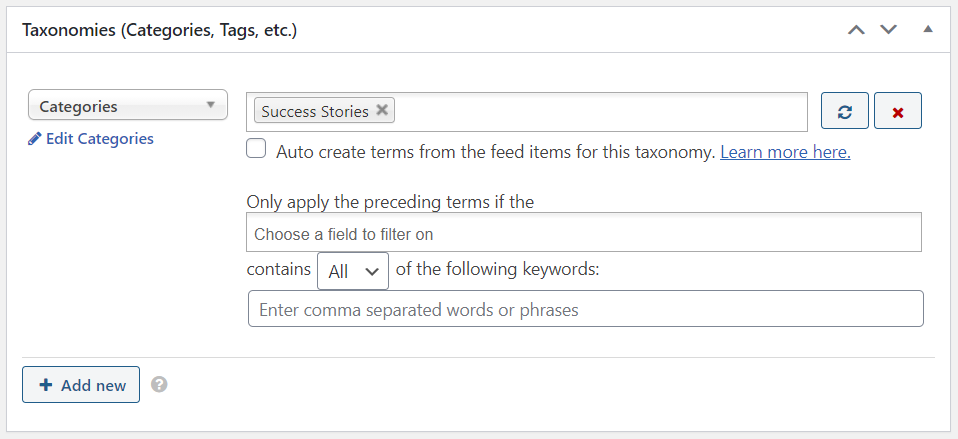
Adding Categories and Tags, Explained
Taxonomies can be divided into either Categories and Tags.
1. Categories
The WP posts category is one of the pre-defined Taxonomies in WordPress used to sort and group content into different sections. A website publishing content on a variety of topics can divide its website into sections using categories.
- First, create a Category in WordPress from Posts > Categories.
- Set a name and slug for the Category and save it.
- Go to RSS Aggregator.
- Select Category under the Taxonomies section in Feed to Post's settings.
-
You can then apply the Category in the Taxonomy field.

2. Tags
Tag is one of the pre-defined Taxonomies in WordPress. Users can add tags to their WordPress posts along with categories. However, while a category may cover a broad range of topics, tags are smaller in scope and focused on specific topics. Think of them as keywords used for topics discussed in a particular post.
- First, create a Tag in WordPress from Posts > Tags.
- Set a name and slug for the Tag and save it.
- Go to RSS Aggregator.
- Select Tag under the Taxonomies section in Feed to Post's settings.
-
You can then apply the Tag in the Taxonomy field.

Filter the Assigning of Taxonomies
Your final options are only to apply the selected terms if the title or content (or both) contains all or any of the keywords you specify in the box beneath. All keywords/phrases must be separated by a comma, as shown in the screenshot below. This is a way of filtering which imported posts are assigned particular Taxonomies.

Use cases
1. The most common use case example for this option is to automatically filter and have the categories from the RSS feed assigned/created on your site with every post. Maintaining the same structure as from the original site.
2. Another case is when you wanted certain Posts to have one or more specific categories assigned. In this case, it would filter the assigning of the taxonomy and automatically categorize the Post.

