
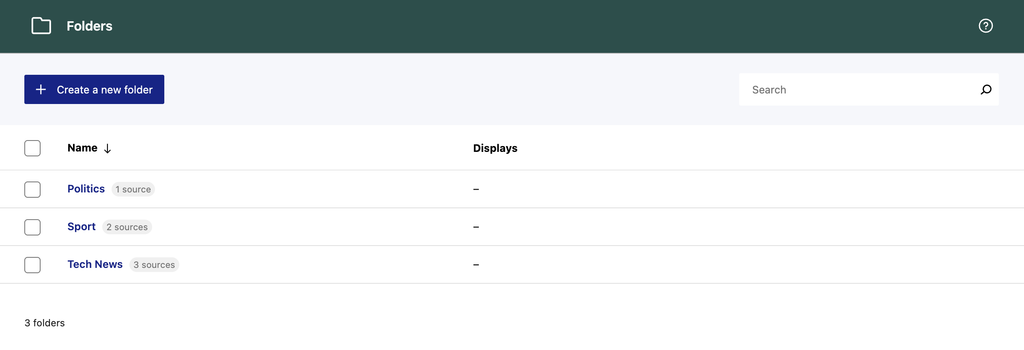
Folders in Aggregator aren’t just for organization. They are a powerful way to group, manage, and display your sources more effectively. By using folders strategically, you can streamline your workflow, improve content targeting, and scale your setup with ease.
Why Folders Matter
Folders let you group multiple RSS sources based on themes or goals. They help you:
- Display entire groups of sources together, based on topic (e.g., “Sports” or “Tech News”).
- Keep your dashboard organized and easier to navigate.
- Manage large numbers of sources with minimal effort.
Folders become even more important as your collection grows, serving as a foundation for a scalable and efficient setup.
Ways to Use Folders
Organize by Purpose or Topic
Group your sources based on their purpose – for example, “News Feeds,” “YouTube Channels,” or “Podcasts.” This makes it quicker to manage groups of sources over time.
Display Entire Folders in Displays
When creating a display, you can add all sources from a folder at once by expanding the Folders section in the display’s settings, instead of selecting sources manually. This helps you set up content areas like a “Homepage Grid” for news or a “Sidebar Widget” for tutorials efficiently.
Filter by Folder in the Hub
In the Hub, you can filter your view by folder. This allows you to quickly locate and manage related items without needing to scroll through your entire list.
Tips for Managing Folders
Keep Folder Names Clear
Use descriptive names that reflect the folder’s content or purpose. Clear naming makes searching, sorting, and managing much easier as your site grows.
Use Bulk Actions
Bulk actions let you quickly duplicate folders, delete folders, or create displays using one or more folders. This is especially useful when scaling your site or cleaning up your setup.
Review and Maintain Folders Regularly
Periodically check your folders to ensure they remain relevant. Update folder contents, rename folders if needed, and remove unused folders to keep your setup clean and efficient.
