
Rejected Items is a list of items that Aggregator will never import. Before importing new items from a source, Aggregator checks this list and skips any item with a matching URL, even if it is still in the feed. Rejected Items is available on all plans, including the free version.
How Items Are Added to the List
An item is added to Rejected Items when:
- You click
Trash and rejecton an imported item in your list of posts or feed items. See How to Permanently Delete & Reject Posts. - You reject it in the
Pending Approvalsection of the Hub, when curation is enabled for a source. Curation is available on all premium plans. - You add its URL yourself with
Reject a URL. - You migrated from Aggregator v4, and the item was on your old Blacklist.
Note: Deleting an imported item from the Hub does not add it to Rejected Items. If the item is still in the feed, it can be imported again on the next fetch.
View Your Rejected Items
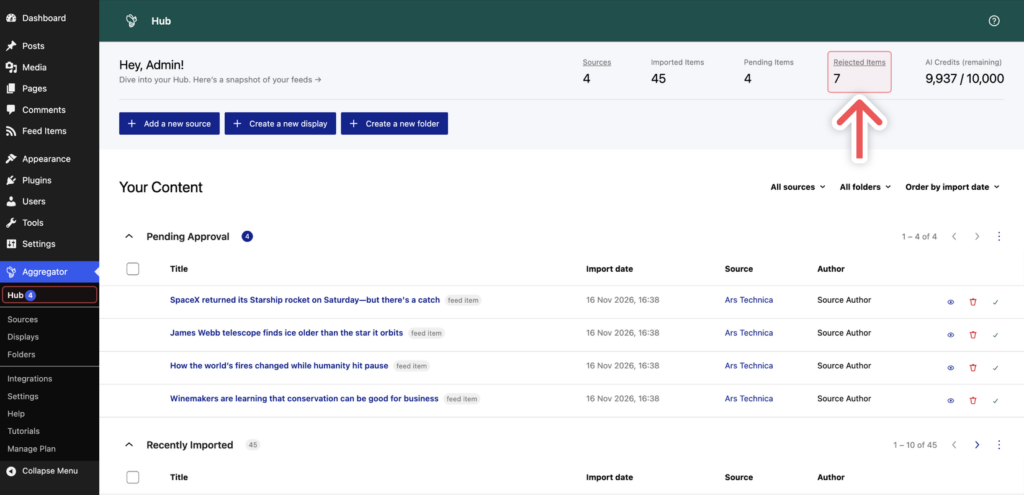
- Go to
Aggregator→Hub. - Click
Rejected Itemsat the top of the Hub.
Each item shows its URL, the date it was added, and a note. Items rejected in Pending Approval get the note “(Rejected curation)” followed by the item’s title. Items removed with Trash and reject get the note “Deleted and rejected by” followed by your name.
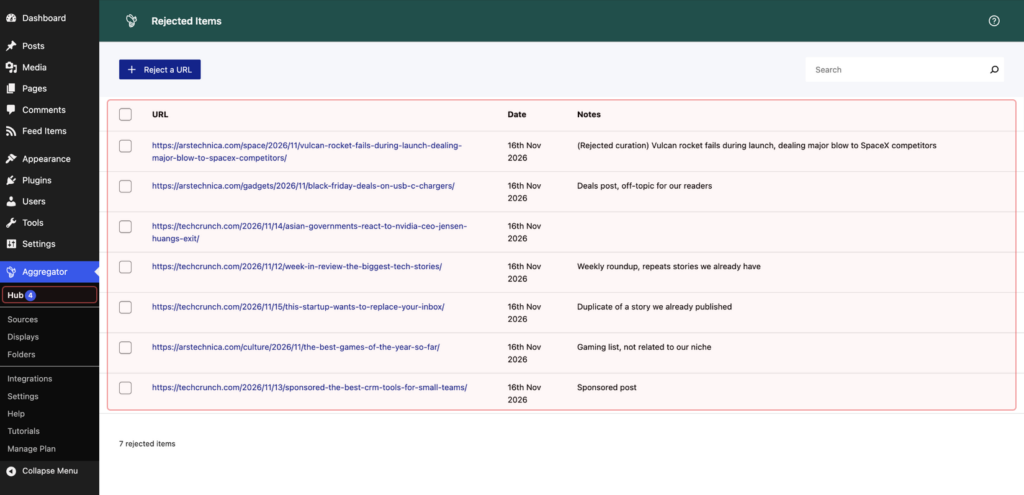
Some items show the feed’s own ID for the item instead of the article’s usual link, for example a link ending in ?p= followed by a number. Use the search box to find an item, for example by its title.
Reject an Item by URL
- Go to
Aggregator→Huband clickRejected Items. - Click
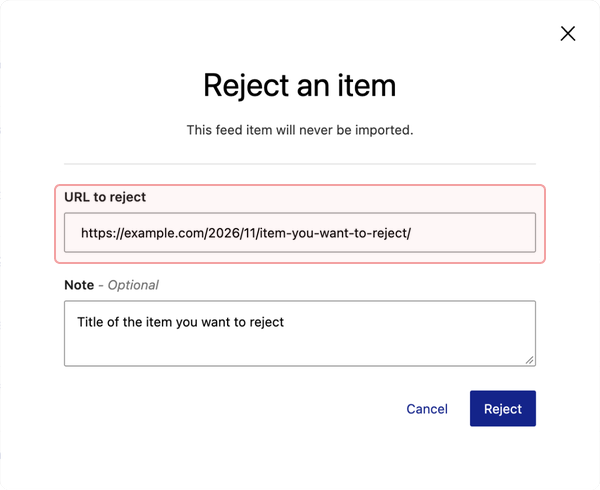
Reject a URL. - Enter the link to the original article in the
URL to rejectfield. - Optionally, add a
Note, such as the item’s title, so you can recognize it later. - Click
Reject.
Edit a Rejected Item
- Go to
Aggregator→Huband clickRejected Items. - Click the item’s URL.
- Change the
URL to rejector theNote. - Click
Update.
Remove an Item from the List
If you rejected an item by mistake, remove it from the list so it can be imported again.
- Go to
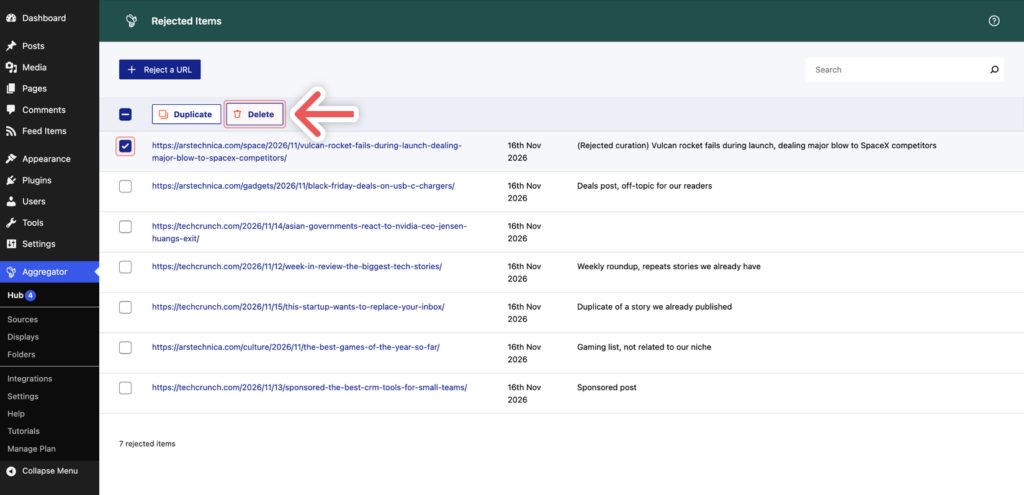
Aggregator→Huband clickRejected Items. - Select the checkbox next to the item.
- Click
Delete, then clickDeleteagain to confirm.
Removing an item from the list does not import it straight away. To get the item back:
- If its post is in the Trash, for example after
Trash and reject, restore the post from the Trash. WordPress restores it as a draft, so publish it again when you are ready. - Otherwise, go to
Aggregator→Sourcesand clickFetchin the source’sImported Itemscolumn. The item is only imported if it is still in the feed.
