

AI Summaries can be enabled and configured individually for each source. This allows you to control which sources generate summaries, how those summaries are created, and how they appear in your imported content.
To set up AI Summaries, follow the steps below to locate and configure the settings:
- Go to
Aggregator→Sourcesin your WordPress dashboard. - Create a new source or edit an existing one where you want to enable AI Summaries.
- Click on the
Advancedtab. - Click on
AI→AI Summaries.
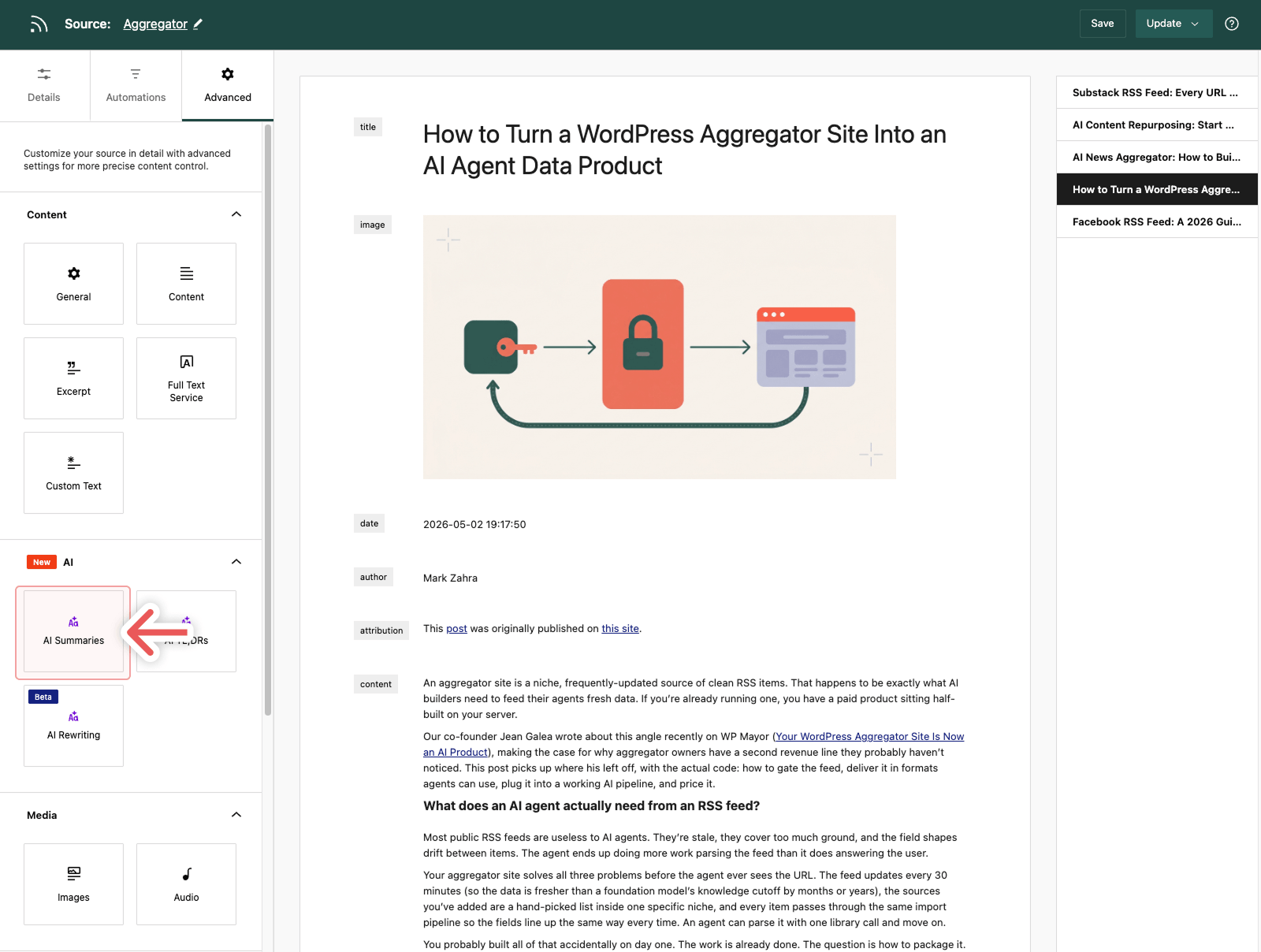
Once you open the AI Summaries section, you will see several options that control how summaries are generated and displayed.
Generate Summaries
Enable Generate Summaries to allow Aggregator to automatically create summaries for items imported from this source.
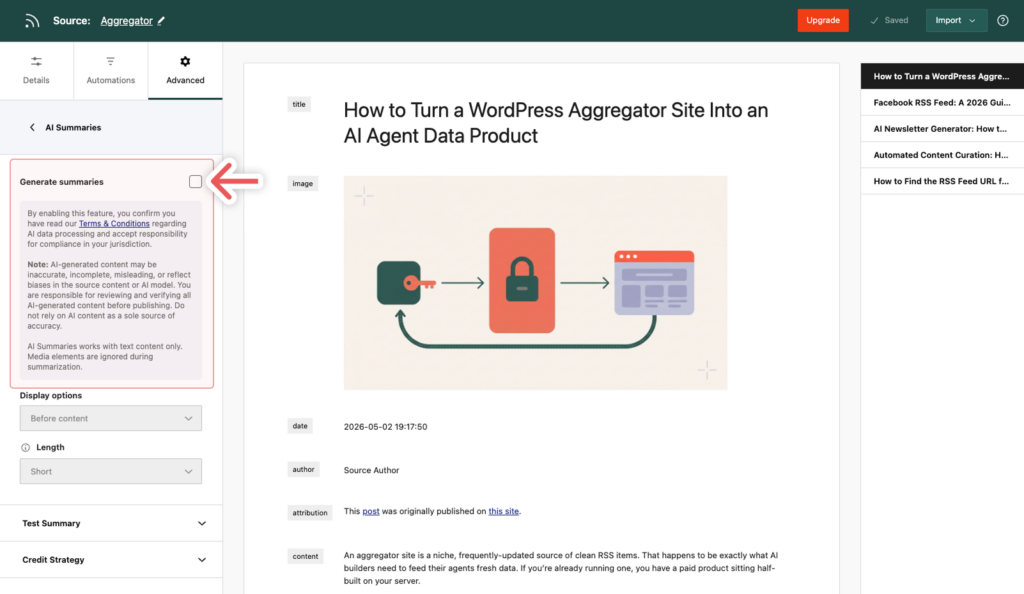
When enabled:
- A summary will be generated during import.
- 1 AI credit is used per successful summary.
- If a summary cannot be generated, the import will continue without interruption.
Note: AI Summaries use the text content from the imported item. If the source includes audio or video elements, those elements will be skipped, and only the available text content will be used for the summary.
Enabling AI Summaries for the First Time
When enabling AI Summaries for the first time, Aggregator will show a short confirmation pop-up. This gives you important information about AI processing, AI Credit usage, and the Terms & Conditions before the feature is enabled.
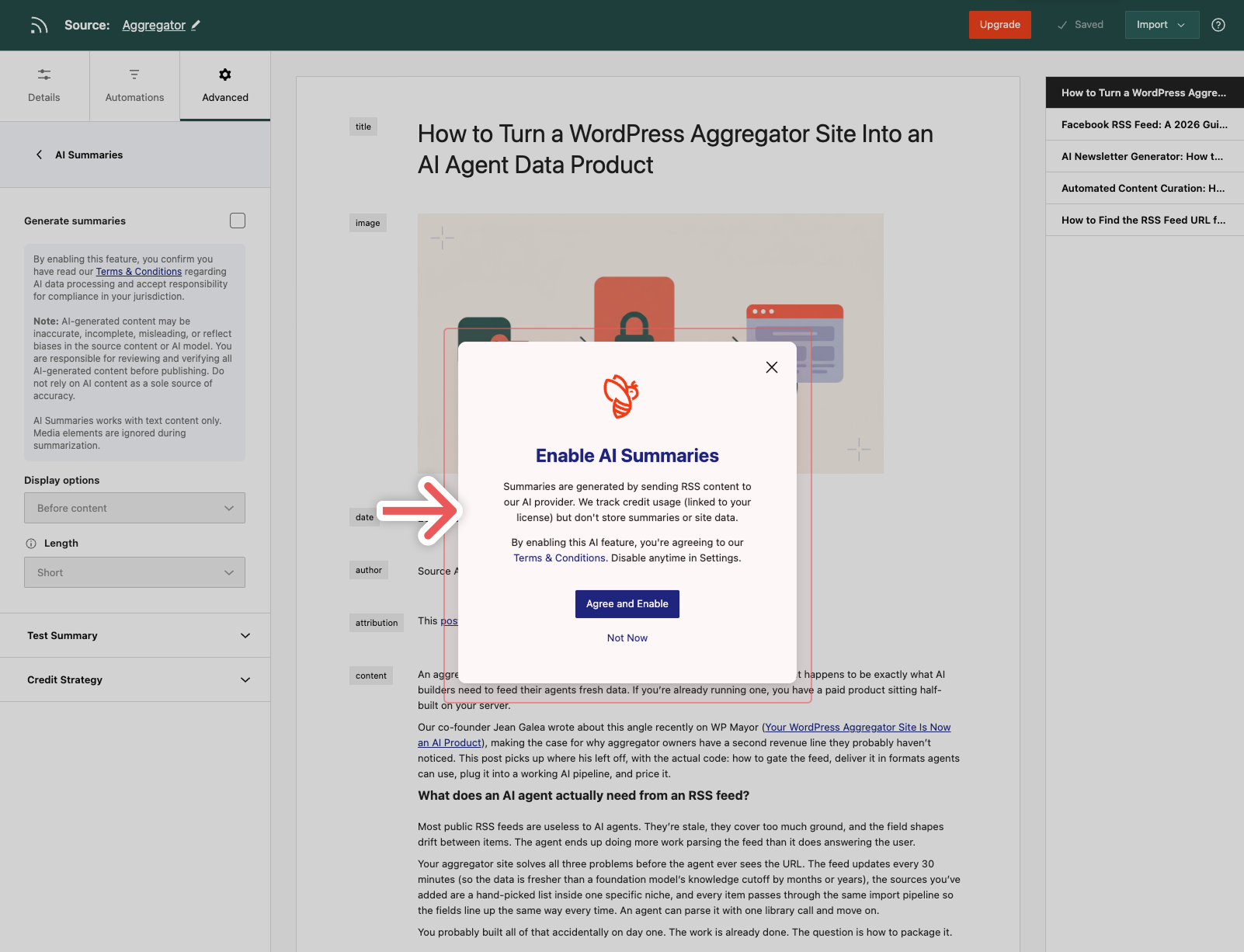
Click Agree and Enable to proceed, or Not Now if you do not want to enable AI Summaries.
When you click Agree and Enable, Aggregator enables the main AI Features setting under Aggregator → Settings → General → AI Features.
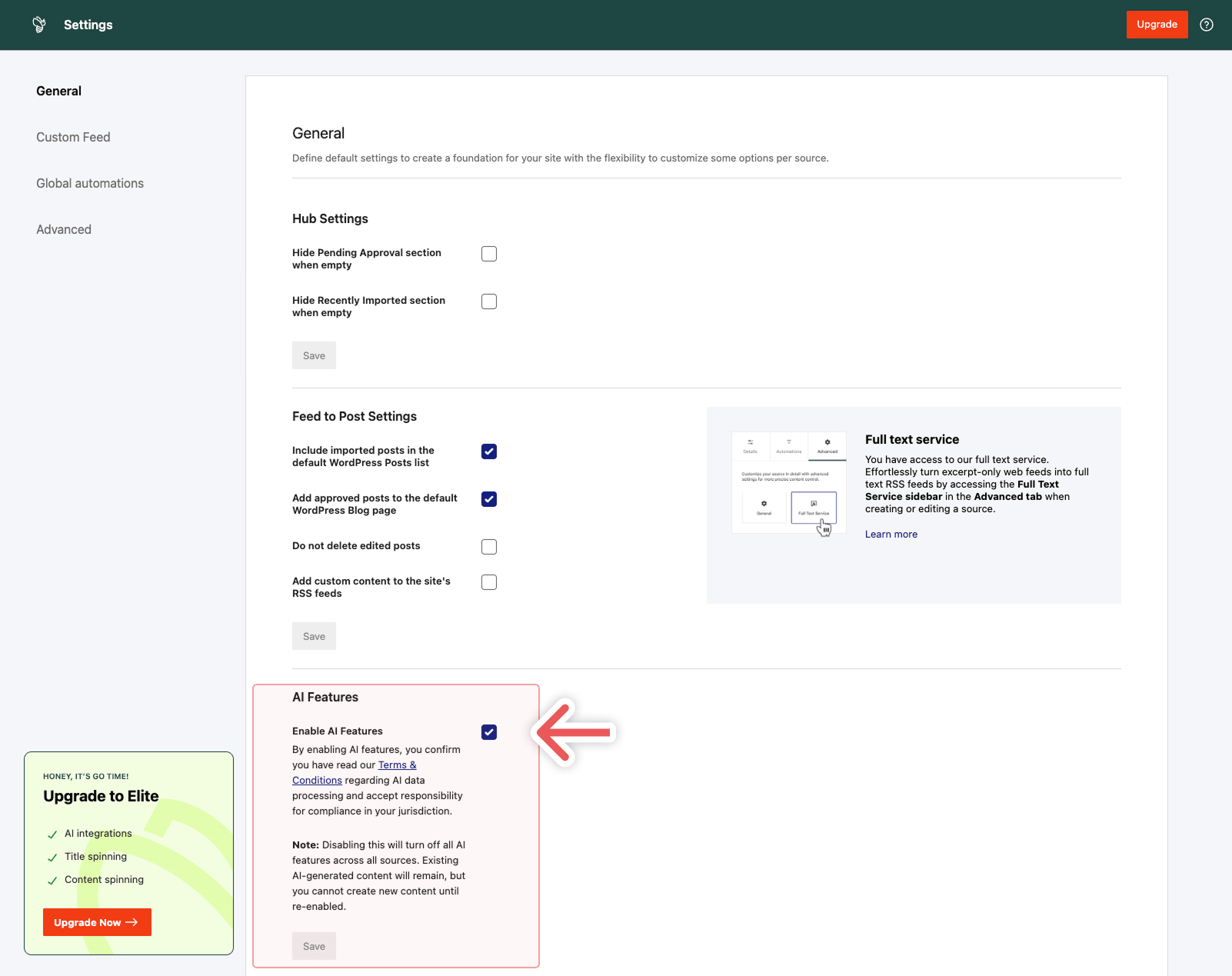
You can disable this setting at any time, but doing so will stop all AI-powered features from working across all sources. Existing AI-generated content will remain on your site.
AI Summaries Options
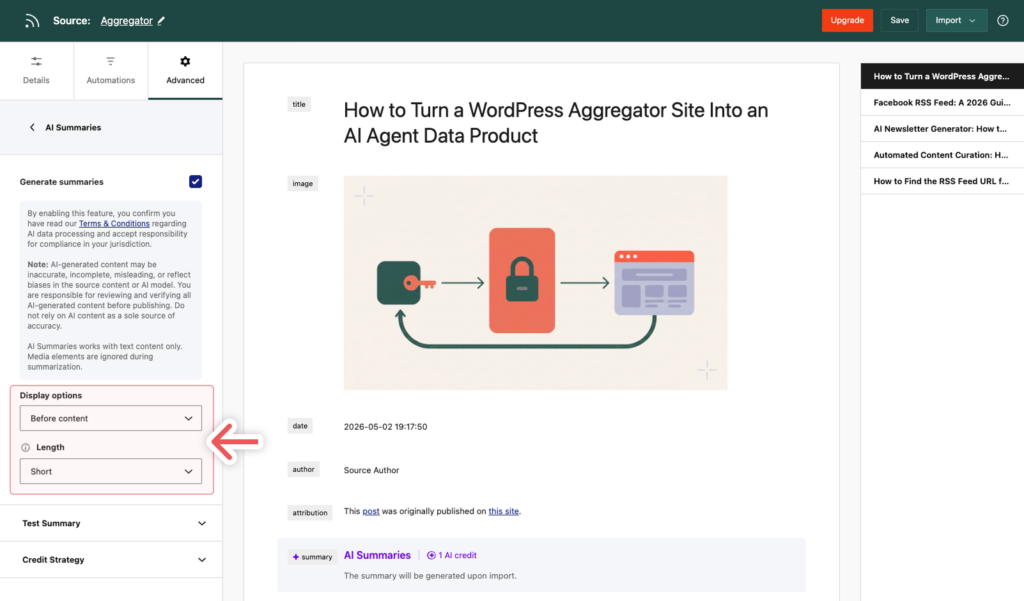
Display Options:
Choose where the summary appears in the imported post.
- Before content: Displays the summary above the imported post content.
- After content: Displays the summary below the imported post content.
Length:
Choose how long the summary should be.
- Short: One to two sentences capturing only the essential facts.
- Long: A brief paragraph summarizing the main points with slightly more context.
Test Summary
Use the Test Summary section to preview how summaries will be generated based on your current settings.
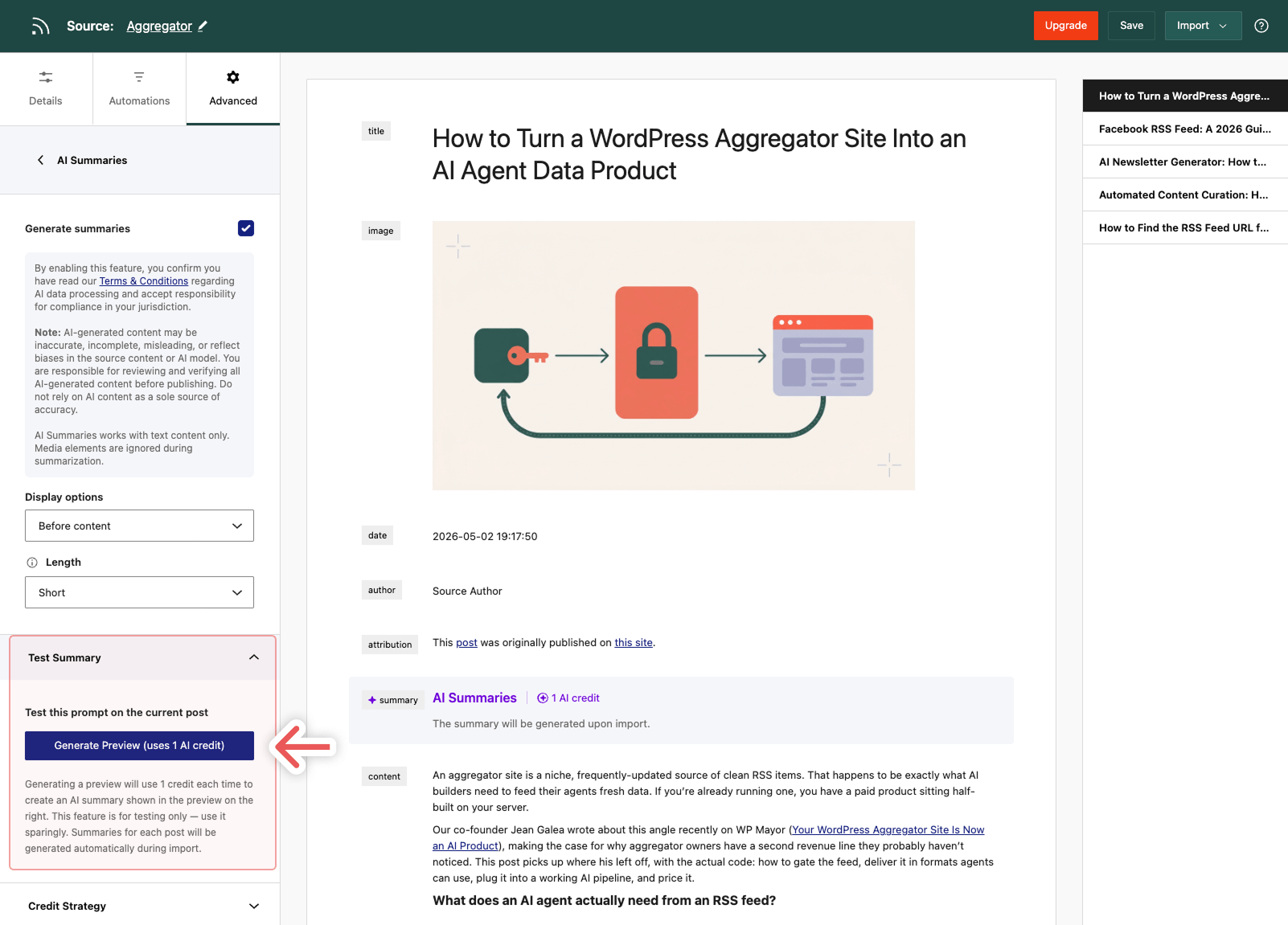
- Click
Generate Preview (uses 1 credit)to create a sample summary for the current item. - Each preview uses 1 AI credit.
- The preview is for testing purposes only and does not affect imported content.
This allows you to quickly test your settings before enabling summaries for actual imports.
Credit Strategy
The Credit Strategy setting determines what happens when your AI credits are exhausted.
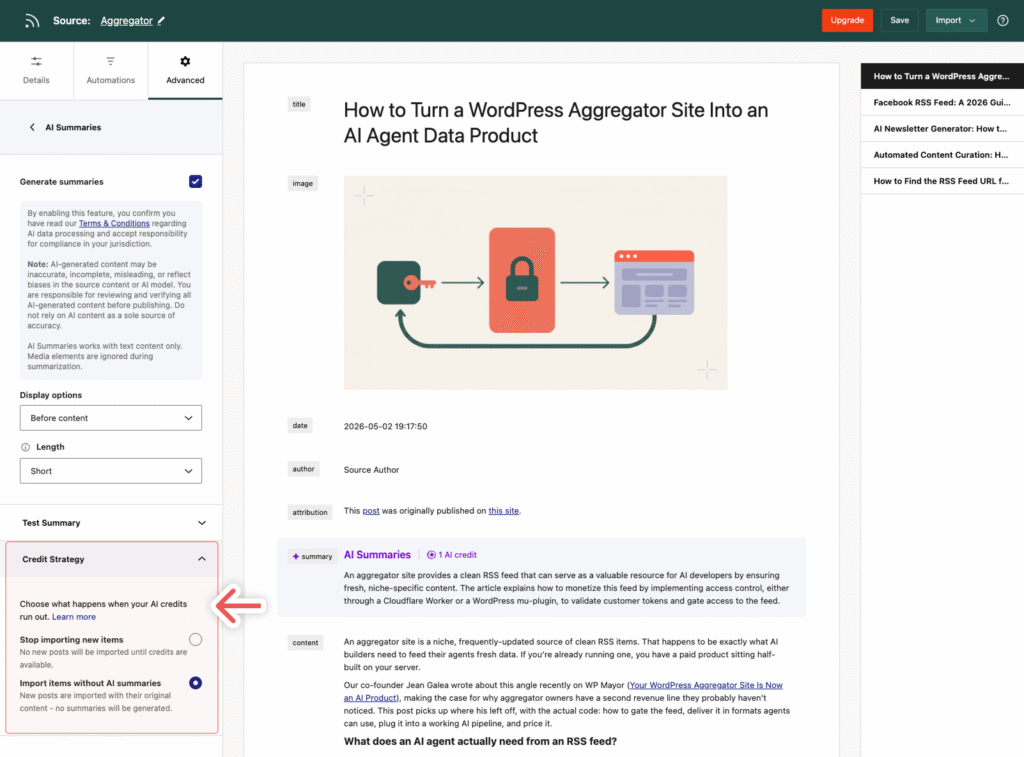
You can choose between:
- Stop importing new items:
No new posts will be imported until credits are available. - Import items without AI summaries:
New posts are imported with their original content – no summaries will be generated.
Choose the option that best fits your workflow, depending on whether summaries are essential for your content or optional.
Once configured, AI Summaries will be applied automatically during the import process for this source. You can update these settings at any time to adjust how summaries are generated and displayed based on your needs.
Applying Summaries to Already-Imported Items
If you enable AI Summaries or change these settings after items have already been imported, you don’t need to re-import anything. For sources using the Keep items up-to-date strategy, open the source and click Update — Aggregator requests fresh AI content for the existing imported items and applies your current settings. The Fetch action on the Sources list works the same way.
Existing AI content is preserved and refreshed rather than removed. For example, if items were imported with AI TL;DRs and you later enable AI Summaries, clicking Update adds summaries to those items while keeping their TL;DRs. Keep in mind that regenerating AI content this way uses AI credits again for each item.
Note: AI Summaries can be customized with custom CSS to better match your theme or brand. To learn more, see Customizing AI Summaries with CSS.
