

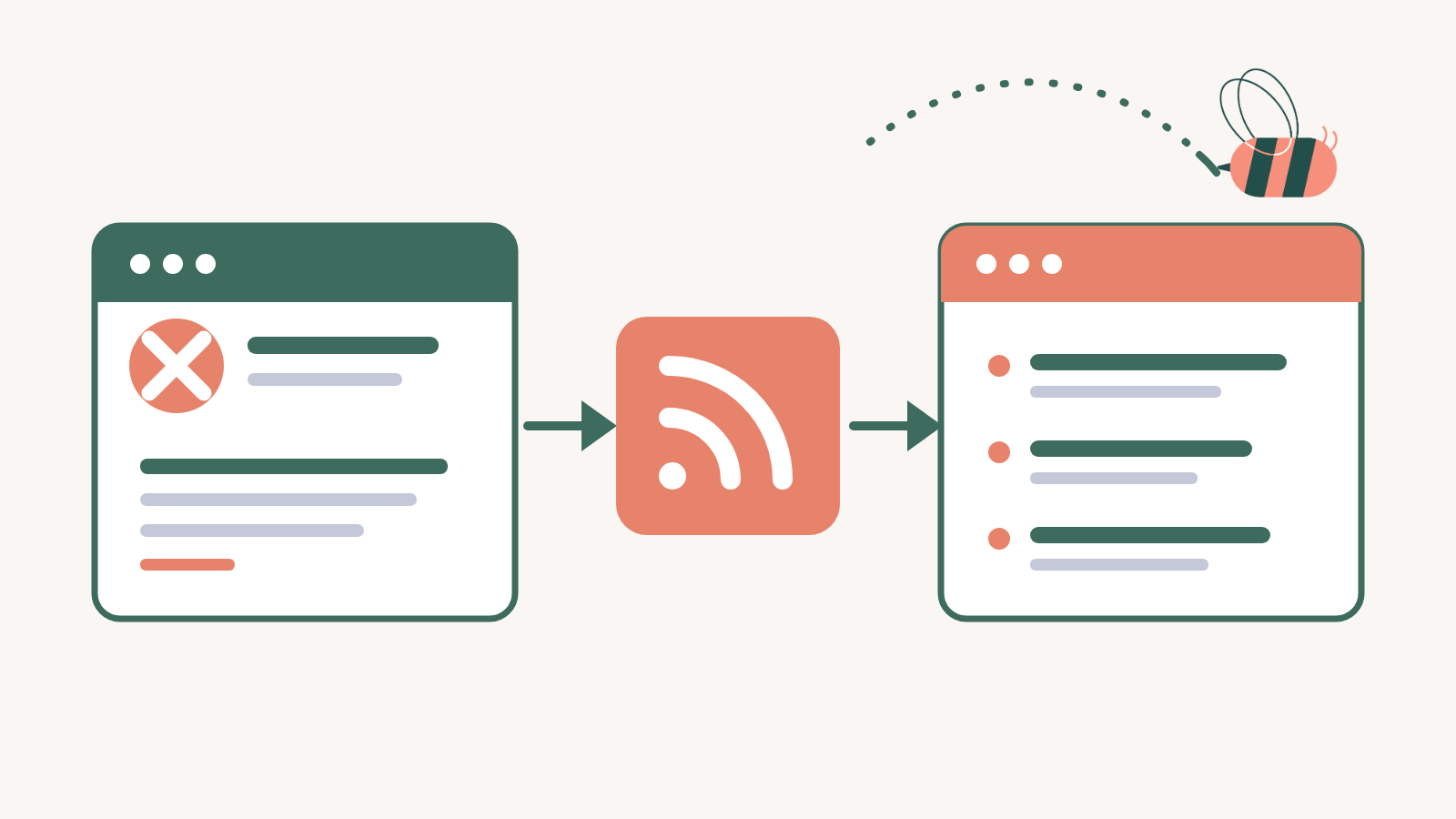
X, formerly Twitter, does not provide native RSS feeds. To follow a public account in an RSS reader or show its posts on WordPress, you first need a service that turns the account into an XML feed. Then you can add that feed to Aggregator like any other source.
This guide uses RSS.app to turn a public X profile into a feed you can follow in an RSS reader or publish as a linked update stream on WordPress. You can preview the account before signing up, but you need to sign in before you can copy the XML feed URL. Export access may also depend on your RSS.app plan.
Which Twitter RSS feed method should you use?
| Method | Use it when | Tradeoff |
|---|---|---|
| RSS.app | You want a guided generator with a live preview | The XML URL requires an account and may depend on your plan |
| Community Nitter endpoint | You need a quick test with a public account | Public instances can stop working or disappear |
| Self-hosted bridge | Your team needs control over the endpoint | You own the setup, updates, and maintenance |
For most site owners, RSS.app is the quickest starting point because it handles the feed generation and preview. A free community endpoint is useful for testing, not dependable production infrastructure. Self-hosting makes sense when control matters enough to justify the maintenance.
How to create an X (Twitter) RSS feed with RSS.app
- Open the RSS.app X feed generator.
- Paste the URL of a public X profile, such as
https://x.com/WordPress. - Select Create My Feed and check that the preview contains posts from the intended account.
- Sign in to RSS.app and copy the RSS or XML URL provided for the generated feed.
RSS.app also accepts public X hashtag and search URLs. The example below uses a profile because the account and newest post are easier to verify, but the WordPress steps are the same once you have a working XML URL.


Before moving to WordPress, open the copied feed URL in a new tab. A working feed returns XML with recent items. If you see an RSS.app preview, an account prompt, or an error page instead, you do not yet have the exportable feed URL.
Optional: test a community Nitter feed
Some public Nitter instances expose RSS by adding /rss after the account name. This example was live when the workflow in this guide was tested:
https://nitter.net/WordPress/rssUse a community endpoint as a test source, not as a promise of long-term availability. A working endpoint does not settle whether you are permitted to use it. Review the current X terms and the provider’s terms before relying on one.
Test the generated URL
Check the Twitter RSS feed URL
Paste the feed URL below, whether it came from RSS.app or another source. Feed Finder checks whether it returns usable RSS and previews the latest items before you add it to WordPress.
Add the X feed to Aggregator
Once you have a working XML URL, add it as a source in WordPress:
- Open Aggregator in the WordPress dashboard.
- Go to Sources and create a source.
- Give it a recognizable name, such as WordPress on X.
- Paste the XML URL into Source Link.
- Check the preview to make sure the newest items come from the right account.
- Save the source so Aggregator can import the available items.


The preview is the useful checkpoint here. It tells you whether the URL leads to an RSS feed rather than a normal webpage, a login screen, or an expired generator link.
Display the Twitter RSS feed on WordPress
With the source saved, create the version visitors will see:
- Open Displays in Aggregator and create a display.
- Select the X source you just saved.
- Choose a layout. List usually gives short social updates more room than a dense grid.
- Adjust the visible details and item limit, then save the display.
- Select Embed and copy the saved display shortcode.
- Paste the shortcode into the destination page, preview it, and publish when the result is ready.

Display or import as posts?
A Display is the lighter choice when you want a live list that links back to the original posts. If every item needs to become its own WordPress post, follow the RSS-to-post workflow deliberately and review attribution, excerpts, and publishing status before anything goes live.
Keep the feed reliable
- Use the XML URL, not the preview page. A generator may show both, but only the feed URL supplies items to Aggregator.
- Check the source when updates stop. Expired trials, account changes, and unavailable community endpoints can interrupt the feed.
- Keep the layout focused. Short excerpts, clear dates, and a sensible item limit make social updates easier to scan.
- Respect the original publisher. Link each item back to its source and make sure your use follows the relevant platform and provider terms.
X RSS feed FAQ
Does X have an official RSS feed?
No. X does not publish native RSS feeds for accounts, searches, or hashtags. You need a third-party generator, a community bridge, or a service you host yourself.
Is a Nitter RSS feed reliable enough for a production site?
Not usually. Public instances are community-run and can change or disappear without notice. They are useful for testing, but a managed provider or self-hosted bridge gives you a clearer operating path.
Can Aggregator display an X RSS feed?
Yes. If the URL returns valid RSS or Atom XML, Aggregator can add it as a source, import its items, and show them through a saved Display.
Are Twitter RSS feeds legal to use?
RSS is a format, so using a feed is not inherently illegal. What matters is how the feed was created and what you do with the content. The current X Terms of Service prohibit scraping without prior written consent, and copyright can protect original posts and media. Use a provider whose method and terms fit your project, link back to the original, and get permission before republishing full content you do not own.
Choose a Twitter RSS setup you can maintain
The generator and WordPress do different jobs. RSS.app, a community endpoint, or a self-hosted bridge produces the XML. Aggregator stores that source, checks the incoming items, and controls how they appear on your site.
The Display stays separate from the generator, so your page layout is not tied to one upstream provider. The same WordPress workflow also works for a Facebook RSS feed or a Google News RSS feed once you have a valid XML URL.
Build a WordPress feed display with Aggregator
The demo page lets you step through Aggregator's source and display workflows without changing your live site.
See Aggregator in action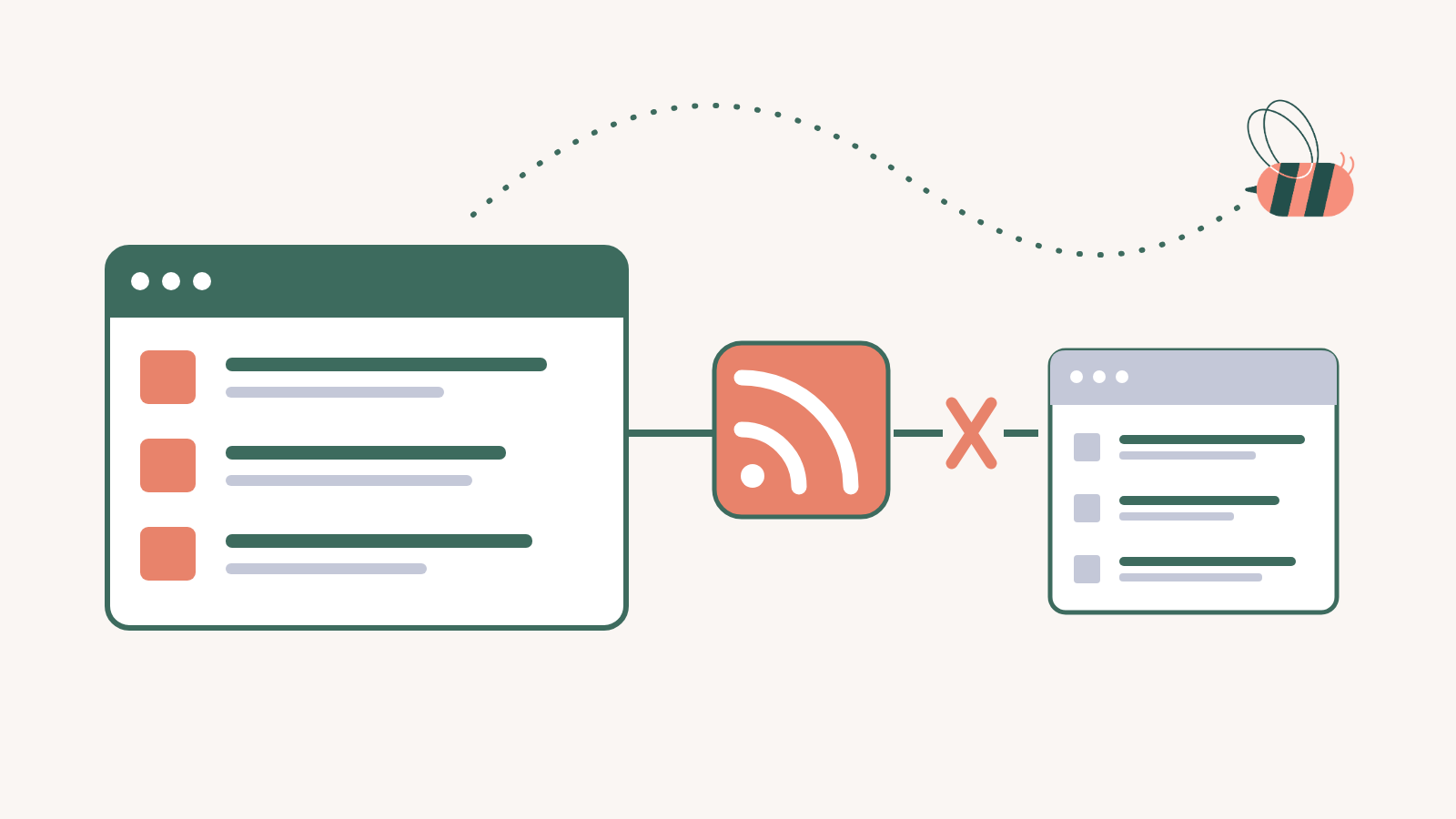


5 Responses
This is such a helpful post! I’ve been looking for a way to create Twitter RSS feeds for my project, and your method seems simple and effective. Can’t wait to try it out in 2024! Thank you for sharing!
I’m glad you found it helpful.
Great post! I’ve been looking for an easy way to create Twitter RSS feeds, and your step-by-step guide is super helpful. I especially liked the tips on customization. Can’t wait to try it out!
My question is, can the same be done with the instagram option on the rss.app option… in other words, is this easier than going and implemnting your spotlight instagram option??
Hi Kenny, if you’re looking to display an Instagram feed on your website, then Spotlight is definitely the easier and more reliable option for you. It’s linked directly to your Instagram account with a secure connection so you’ll have full control over everything.