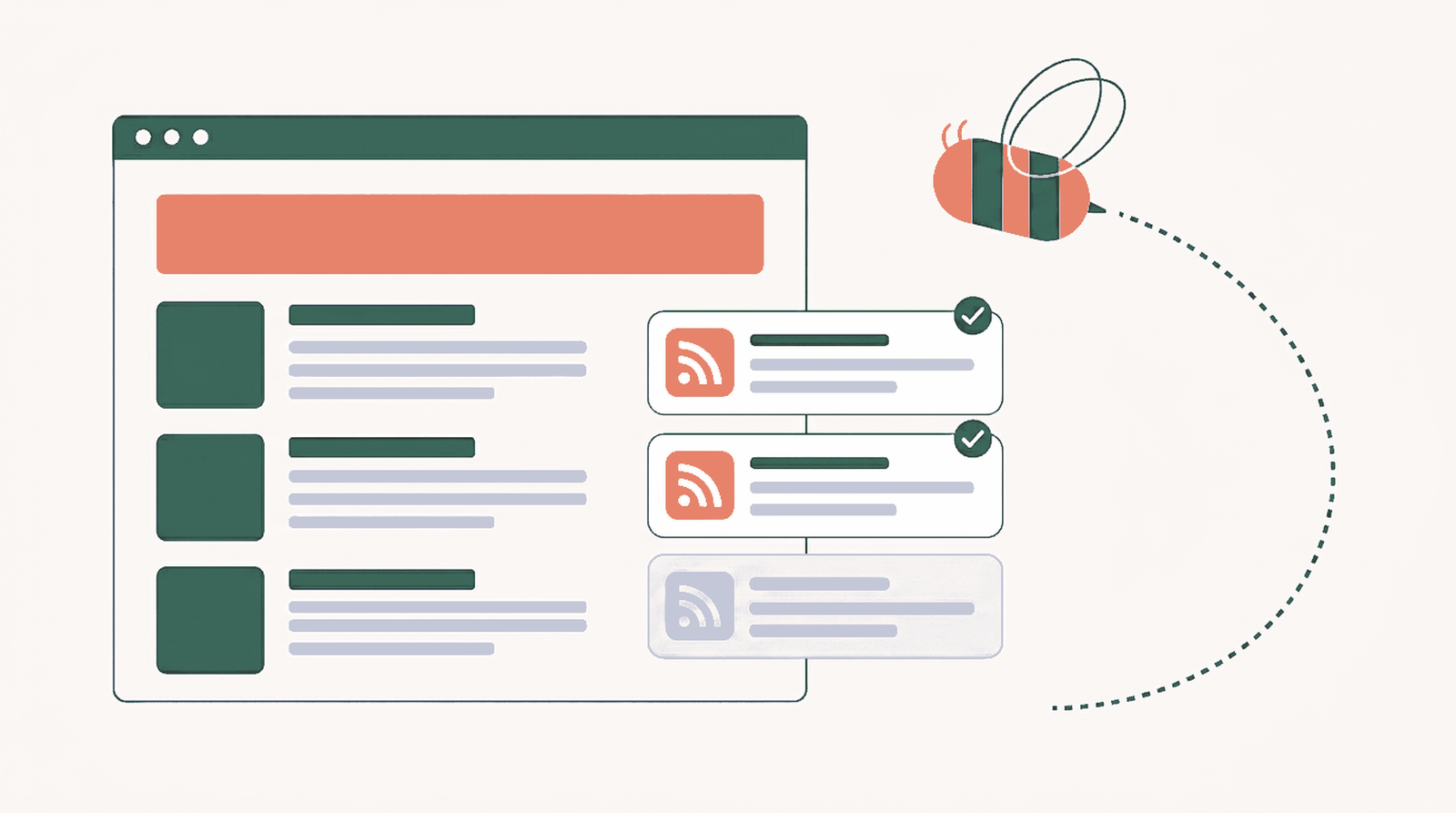
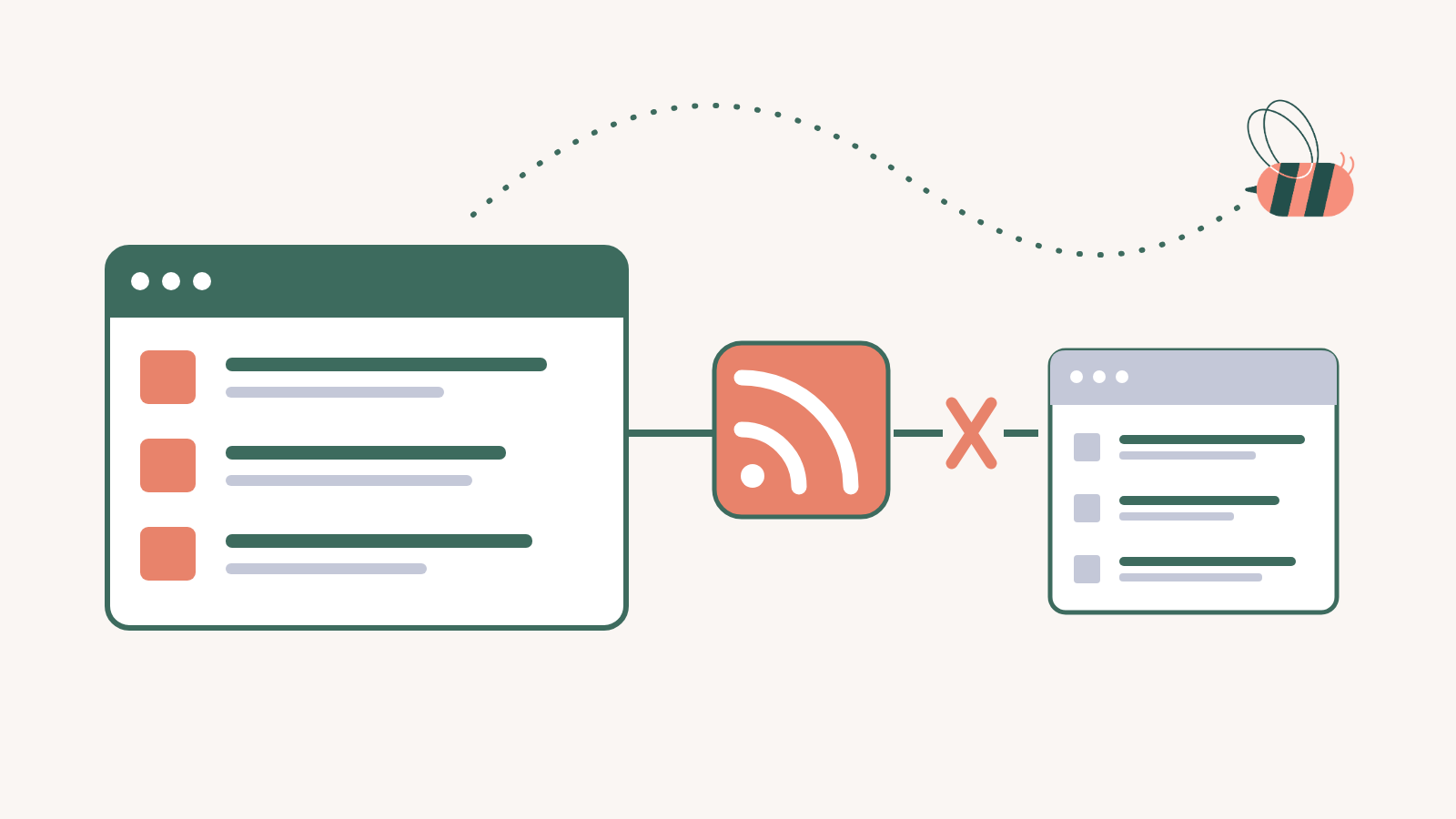
Google Alerts can send results to an RSS feed instead of your inbox. Create an alert, choose RSS feed under Deliver to, save it, then copy the link from the RSS icon beside the saved alert.
If all you want is a private feed, you can stop there and add it to a feed reader. The steps below are for people who want the results on a WordPress page, with the noise filtered out and every headline linked to its original source.
Google Alerts RSS or Google News RSS?
Both can supply recent links, but they start from different places.
| Choose | When it fits | What you control |
|---|---|---|
| Google Alerts RSS | You want Google Alerts to monitor a specific query and deliver its results as a feed | Alert query, sources, language, region, result quality, and delivery account |
| Google News RSS | You want a feed based on a Google News topic or search | The Google News topic, section, or search query |
If you already know the exact subject you want Google Alerts to watch, use the steps below. If you want a feed built from Google News instead, see How to Create a Google News RSS Feed.
1. Create a focused Google Alert
Open Google Alerts and enter the topic you want to monitor. Before you save it, read the preview.
The preview tells you whether the alert is usable. If it mixes good coverage with job listings, unrelated products, or passing mentions, tighten the query now. Quotation marks can help with an exact phrase. Adding another specific term can separate your topic from a product or company with a similar name.

Select Show options and check each setting before you save:
- Leave Sources on Automatic unless you only want a specific type of result, such as news or blogs.
- Set Language and Region for the people who will read the finished page.
- Choose All results when you would rather filter a larger pool yourself. Only the best results gives Google more control over what makes it into the feed.

2. Choose RSS delivery and copy the feed link
Under Deliver to, choose RSS feed, then create the alert.

Once the alert is saved, an RSS icon appears beside it. Copy the icon’s link address. That link is the feed URL you will use in the next steps.
Keep it private. The generated URL is tied to the alert and your Google account, so it should not appear in article text, screenshots, or the public WordPress display.

3. Test the Google Alerts feed
Paste the copied link into the Feed Finder below and run the check. The tool has to receive the URL to test it. If you would rather not submit an account-specific feed URL to a web tool, open the link in a new tab instead and check that it returns XML, even if the feed does not contain any items yet.
The Feed Finder may call it an Atom feed. Atom is another XML feed format, and it works here just like an RSS feed. Aggregator accepts the URL as it is, so there is nothing to convert.
If you ever need to locate a feed on a different site, the same tool is covered in more detail in How to Find an RSS Feed URL.
4. Add the feed to Aggregator
In WordPress, go to Aggregator → Sources and add a new source. Give it a name you will recognize, paste the Google Alerts feed URL into the source field, and choose Feed Item as the import type.
Use Feed Item because the headline should open the original result, not a local WordPress post.
Save the source and let Aggregator fetch the first items.


5. Filter predictable noise with one Automation
A focused alert is the first filter. An Automation gives you a second one inside WordPress.
Create an Automation for the feed and start with the term that belongs in every result. Here, the first condition keeps titles containing WordPress.

We tested this with a broad WordPress alert. Twenty items came through. The title rule left ten, and a few weak matches still slipped through. Use the Automation for cleanup, not as a substitute for a better alert.
Add a second condition for noise that keeps returning. If job listings, training offers, and theme roundups are cluttering the feed, exclude the phrases that identify them. Here, those phrases include Job, Trainer, Themes, and Website Design.

Do not copy that exclusion list blindly. Use the patterns in your own feed. You can see more rule examples in How to Filter RSS Feeds in WordPress.
6. Build the display and publish the page
Create a display in Aggregator, select the source, and choose the List layout.
Turn off the source name and source link so the private Google Alerts feed URL does not appear on the page.
Treat the byline as a separate choice. If the page needs one, set the imported Feed Items to the WordPress author you want readers to see and leave Show author on. If a local byline adds nothing, turn it off. Do not leave an unrelated default user attached to public results.


Save the display, copy its shortcode, and add that shortcode to the WordPress page where the results should appear. For other layouts and display controls, see the Aggregator Displays feature.
Preview the actual page before publishing. You should see result titles and dates without the Google Alerts source URL. If you kept a byline, confirm that it shows the WordPress author you selected. Open a few titles too and make sure they lead to the original pages.

Google Alerts RSS FAQ
How do I get an RSS feed from Google Alerts?
Create or edit an alert, open Show options, choose RSS feed under Deliver to, and save it. Google then adds an RSS icon beside the saved alert. Copy that icon's link address to get the feed URL.
What does RSS feed mean in Google Alerts?
It changes how Google delivers the alert. Instead of sending matches to your inbox, Google puts them in a feed URL that a feed reader or Aggregator can check. Google uses the Atom feed format for that URL, but you do not need to convert it.
Why is my Google Alerts RSS feed empty?
First, check whether the alert preview contains results. If the feed validates but has no items, try it again later. A new alert can take time to populate, and Google does not promise that every match will appear immediately.
What are the limitations of Google Alerts RSS?
Google Alerts does not promise complete or immediate coverage. Broad queries can return weak matches or duplicates, and item links may pass through a Google redirect before opening the original page. Check the alert preview and review the feed before you publish it.
Can I add a Google Alerts RSS feed to WordPress?
Yes. Add the saved feed URL as an Aggregator source and import it as Feed Item. You can then filter the results and place a display on a WordPress page while keeping each headline linked to the original result.
Decide where these results belong
For private reading, stop after creating the RSS feed and add it to your preferred feed reader. You do not need WordPress for that.
For a public WordPress page, use Feed Items, filter the results, show concise linked headlines, and keep the alert URL out of the display. Receiving an item through a feed does not give you permission to republish the underlying work.
If you have permission to use the material and want editable drafts for review, Feed to Post is available on Pro plans and higher. That is a different workflow from the linked results page built here.
Turn your alert into a page worth checking
Aggregator brings the feed into WordPress, lets you filter the noise that keeps coming back, and publishes the linked results in a display you control.
See plans and pricing