
Aggregator stores everything it imports on your own site. On a busy feed source that adds up over time, mostly in images. This article explains what is using the space, how to stop new images from piling up, and how to clean up older imported items.
What Is Using the Space
Images are usually the biggest part. On premium plans, Aggregator can copy images from imported items into your WordPress Media Library:
- The featured image for each imported item, when
Import featured imageis enabled. - The images inside each item’s content, when
Import images to media libraryis enabled. - Every size of each content image that the feed offers, when
Import all sizesis enabled.
WordPress then creates its own resized copies of every image added to the Media Library, so one imported image can take up several files on disk.
The imported items themselves are stored in your WordPress database, one post per item. With many sources or high item limits, the database grows too.
Note: The free version of Aggregator does not copy any images to your site. If you are on the free version and your hosting is filling up, look at the number of imported items or at other plugins.
Aggregator does not download the same image twice. If an image from the same address is already in your Media Library, Aggregator uses the existing copy.
Stop New Images from Piling Up
Image settings are set per source, so repeat these steps for each source that brings in images.
- Go to
Aggregator→Sourcesand click the source’s name. - Click on the
Advancedtab. - Click on
Media→Images.
The settings at the top apply to the featured image:
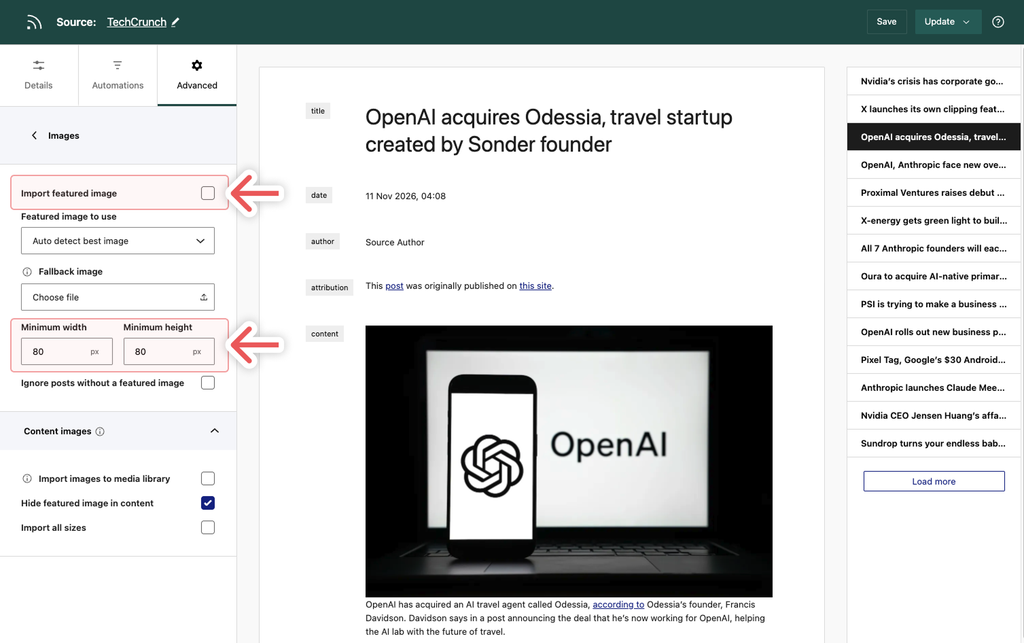
Import featured image: uncheck this if you do not need featured images. Imported items then have no featured image, and displays do not show an image for them.Minimum widthandMinimum height: images smaller than this are not downloaded, which skips icons, logos and tracking pixels. These limits apply to content images too. The default is 80 × 80 px.
Then expand the Content images section:
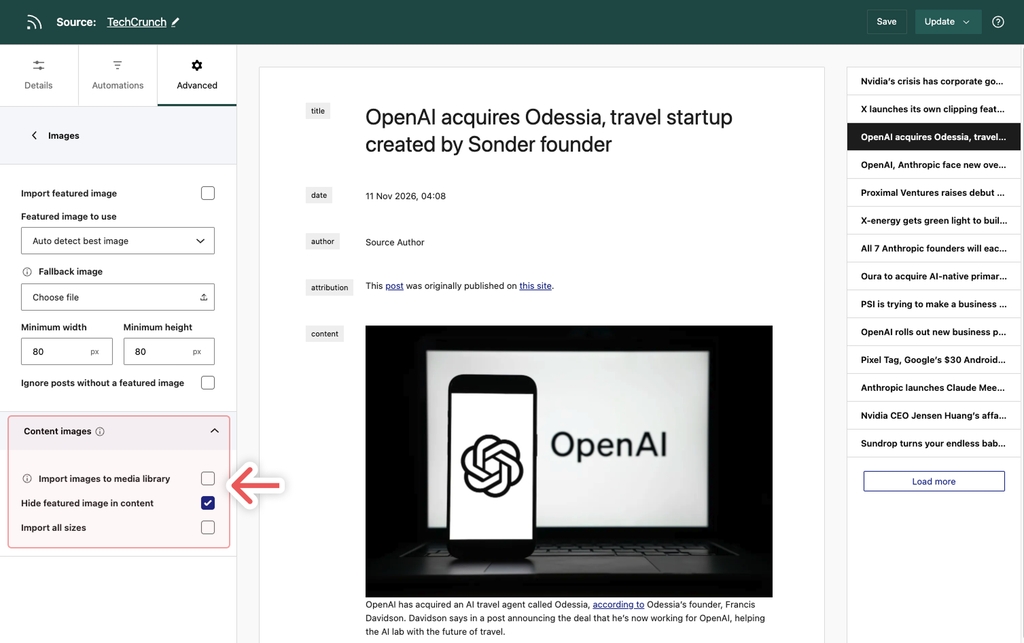
Import images to media library: uncheck this to stop copying the images inside the content. They keep loading from the original site instead.Import all sizes: uncheck this so only one size of each image is copied.
Click Save at the top right of the source editor to save your changes.
These changes apply to items imported from now on. Images already in your Media Library stay there until you delete the items they belong to.
Note: Import featured image and Import images to media library are available on all premium plans. Import all sizes is available on the Plus, Pro, and Elite plans.
The Content images section only appears when the source imports items as posts or another post type, not as Feed Items.
Clean Up Old Items
Each source can keep its imported items down automatically, by number, by age, or both. Both limits are available on every plan, including the free version.
Limit the Number of Stored Items
- Go to
Aggregator→Sourcesand click the source’s name. - On the
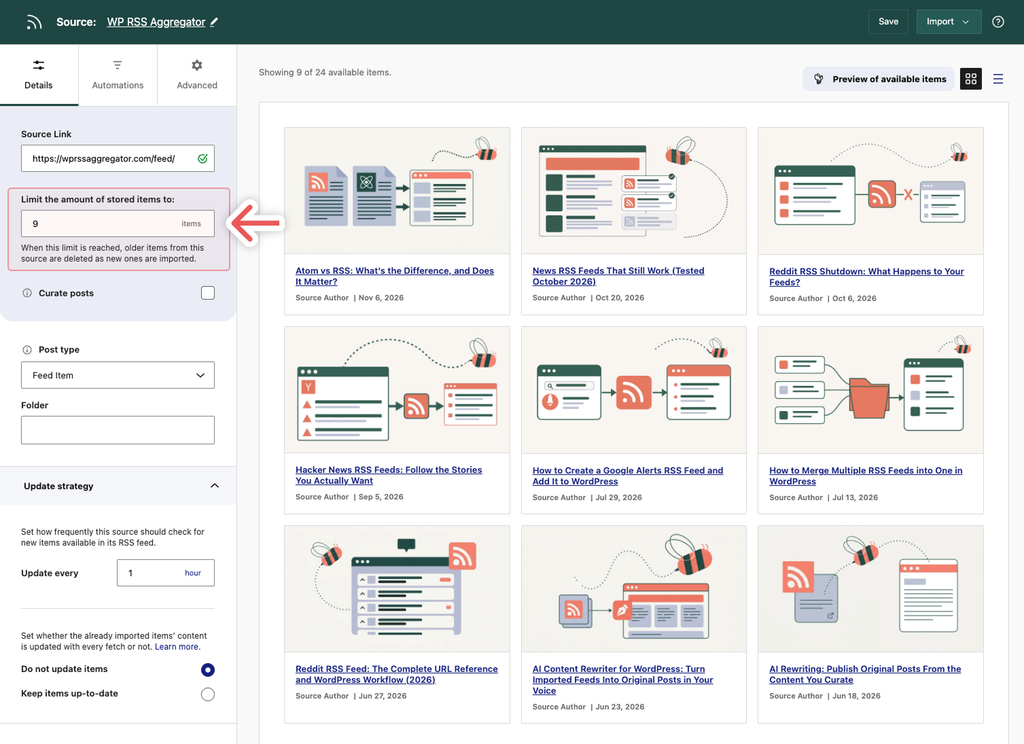
Detailstab, setLimit the amount of stored items to:to the number of items you want to keep. When the limit is reached, older items from this source are deleted as new ones are imported. - Click
Saveat the top right of the source editor.
Limit Stored Items by Age
- Go to
Aggregator→Sourcesand click the source’s name. - Click on the
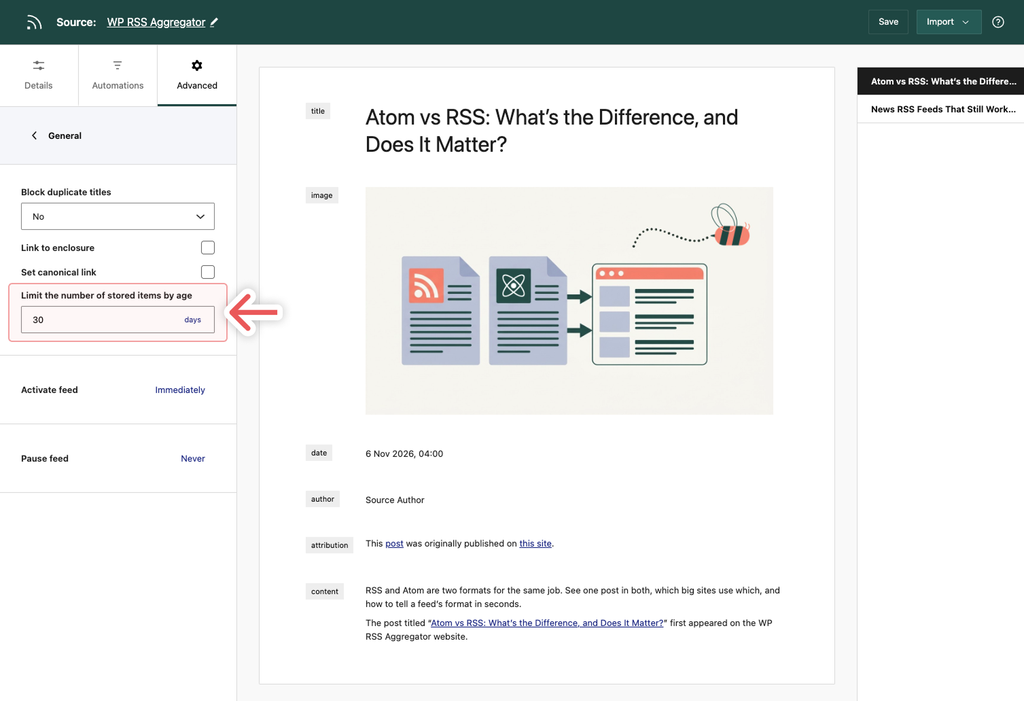
Advancedtab, then clickGeneral. - Set
Limit the number of stored items by ageto how long you want to keep items, for example 3 months. - Click
Saveat the top right of the source editor.
When the Limits Apply
Aggregator applies both limits each time the source is fetched. To apply them straight away, go back to Aggregator → Sources and click Fetch in the source’s Imported Items column.
On premium plans, deleting an imported item also deletes the images that were downloaded for it, so the limits free up disk space as well as database space.
If Do not delete edited posts is enabled under Aggregator → Settings → General → Feed to Post Settings, posts you edit by hand while it is enabled are kept when older items are deleted. This option is available on the Plus, Pro and Elite plans.
Delete Items in Bulk
To delete everything one source has imported:
- Go to
Aggregator→Sources. - In the source’s
Imported Itemscolumn, clickDelete. - Click
Delete itemsto confirm.
To delete everything Aggregator has imported, from every source:
- Go to
Aggregator→Settingsand click on theAdvancedtab. - Under
Delete All Imported Items, clickDelete all imported posts. - Click
Yes, delete all poststo confirm. This also deletes items waiting for approval in the Hub.
Both actions cannot be undone, so take a backup of your site first.
Will Deleted Items Come Back?
Yes, if they are still in the feed. Deleting an item does not stop Aggregator from importing it again on the next fetch, images included, unless your limits leave it out.
To keep a single item off your site for good, add it to the Rejected Items list. Rejected items are never imported again:
- Go to
Aggregator→Hub. - Click
Rejected Itemsat the top of the Hub. - Click
Reject a URLand enter the item’s link.
Aggregator can only import what is still in the live feed. Many feeds only list their most recent items, so an older item you delete may be gone for good. If you need older items to stay on your site, keep them and reduce new images with the settings above, instead of deleting and importing them again.
