
Your license key unlocks Aggregator’s premium features, but it can’t do that on its own. If Aggregator still shows Free after you enter your key, for example “Your Plan: Free” on the plan page or upgrade prompts on premium options, work through the checks below in order. Most sites are fixed by the first two.
Install Aggregator Premium
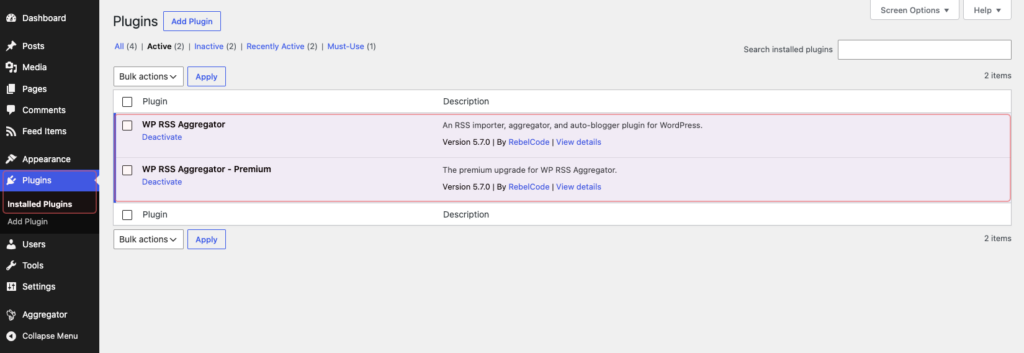
Premium features come from a second plugin, WP RSS Aggregator – Premium, which runs alongside the free WP RSS Aggregator plugin. Without it, Aggregator stays on the Free plan, even with a valid license key.
- Go to
Plugins→Installed Plugins. - Check that both WP RSS Aggregator and WP RSS Aggregator – Premium are listed and active.
- If Premium is missing, download it from
Downloadsin your account, then install and activate it. See Installing Aggregator Premium for the full steps.
Make Sure Both Plugins Are on the Same Version
The two plugins are released together and are meant to run on the same version. When they are out of sync, Aggregator pauses some or all of its premium features, and you may see a Plugin versions out of sync notice.
- Go to
Plugins→Installed Pluginsand compare the version numbers of both plugins. - If they are different, update the plugin that is behind. If both need an update, update WP RSS Aggregator first, then WP RSS Aggregator – Premium.
Premium updates only come through while your license is active. If your license expired and you have just renewed it, the Premium plugin may have missed updates in the meantime, so check its version too. If the update doesn’t show up, see Fixing the Plugin Version Mismatch Notice, which also explains how to update manually.
Activate Your License on This Site
Aggregator also shows Free until your license is active on this site. This happens when the key was never activated here, the license has expired, or it is already in use on other sites.
- Go to
Aggregator→Upgrade. Once your license is active, this menu item changes toManage Plan. - Look at the box on the left that shows
Your Plan. A green check next to your key means the license is active on this site. A red warning icon means it isn’t. - If no key is saved yet, the box shows
Your Licenseinstead. Enter your key there and clickActivate.
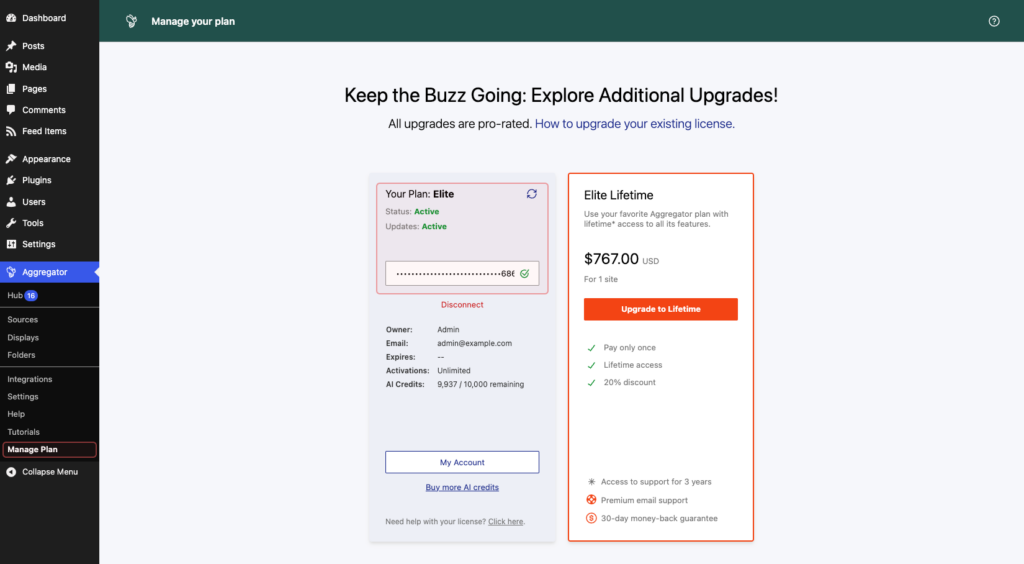
If your key has a red warning icon:
- Your license has expired. Renew it to unlock your premium features again. See Renewing Your License or Plan.
- There are no activations left, or your site’s address changed, for example after moving to a new domain or a temporary URL. Free up an activation in your account, then click
Disconnectunder your key, enter the key again and clickActivate. See License Activation Issues for the steps.
Coming from v4?
If you upgraded from Aggregator v4, make sure the migration to v5 is finished and the old add-ons, such as Feed to Post, are no longer active. In v5, a single Premium plugin replaces them. See the V5 Migration Guide.
Still Showing Free?
If you have gone through every check and Aggregator still shows Free, contact our support team. Let us know which plan you bought and the address of the site you are activating it on, and we’ll take a look.
