
When a feed source stops bringing in new items, the cause is usually one of five things: the feed itself, items waiting for your approval, WordPress cron, a setting on the source, or a conflict with another plugin.
Work through the checks below in order. Most of them take less than a minute.
Check the Source for Errors
Start on the Sources page:
- Go to
Aggregator→Sourcesin your WordPress dashboard. - Find the source in the list and look at the
Updatescolumn. If the last fetch failed, it shows a red warning icon with Last updated: Failed. Hover over it to see the error message. The line below shows when Aggregator will try again, for example “Trying again in 55 minutes”. Paused sources don’t show this line. - Check the bottom of the list. If any sources failed, it shows how many are unreachable, for example “3 sources | 1 unreachable”.
- In the
Imported Itemscolumn, clickFetchto try an import right away.
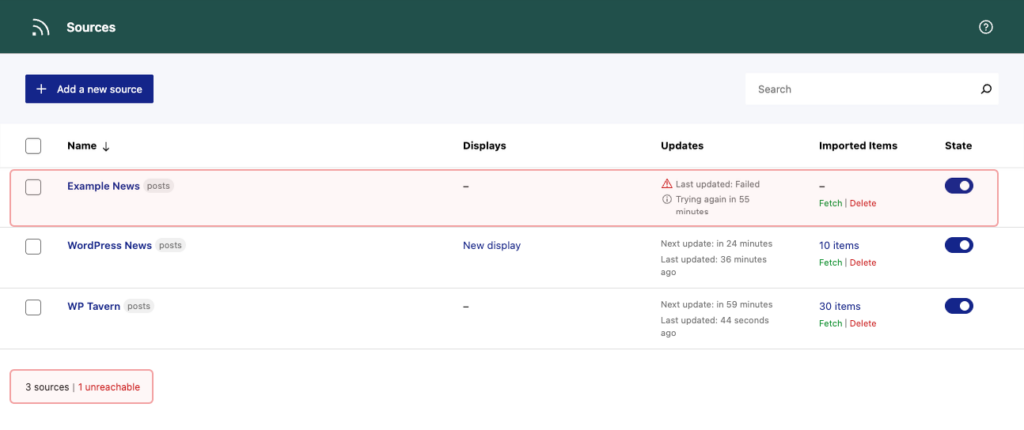
If the fetch still fails, open the feed URL in a new browser tab. A feed that does not load there, asks for a login, or shows an error page will not load for Aggregator either. Sites sometimes move their feed to a new address, so check the site for a current feed link.
Check That the Feed Is Valid and Has Items
In the source editor, Aggregator checks the feed URL as you enter it. An orange ⓘ icon next to the URL means the feed contains errors. Its tooltip reads “This RSS feed contains errors, but may still work with Aggregator”, and clicking it opens the feed in the W3C Feed Validation Service.
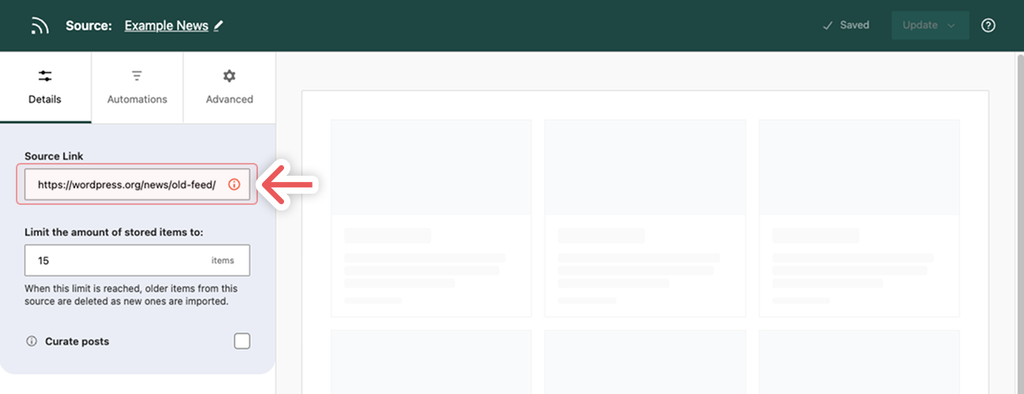
Many feeds with minor errors still import correctly, so treat the warning as a clue, not a verdict. To check the feed yourself:
- Copy the feed URL from the source.
- Open the W3C Feed Validation Service.
- Paste the URL and click
Check. - Look for errors, and check that the feed actually lists items.
A feed can be valid and still empty. Google Alerts is a common example: when an alert has no recent results, its feed has no items, so there is nothing to import. To fix this, edit the alert in Google Alerts, check the search terms for typos or make them broader, and save it. New items are imported at the source’s next update.
Check Whether Items Are Waiting for Approval
If curation is enabled for a source, new items are imported into the Hub but held until you approve them. They do not appear on your site in the meantime, which can look like a feed that stopped updating.
Go to Aggregator → Hub and open the Pending Approval section. If new items from the source are waiting there, the feed is still updating. Approve the items to publish them, or uncheck Curate posts on the source’s Details tab to stop holding new items. See Curate Items Before Publishing for more details.
Check WordPress Cron
Aggregator imports on a schedule using WordPress cron. By default, WordPress cron only runs when someone visits your site, so on a site with little traffic scheduled imports can run late. If cron is disabled and nothing replaces it, scheduled imports do not run at all.
To check that Aggregator’s schedule is running, install the free WP Crontrol plugin, go to Tools → Cron Events and search for wpra.update. This event runs every minute. If its next run time is in the past, or stays on “Now” without changing, cron is not running on your site.
See WordPress Cron for how to fix this, including what to do when you see a notice that says “WordPress cron is disabled on this site.” For stuck events, see Solutions to Cron Issues.
Check the Source’s Settings
A source can be working correctly and still bring in nothing, because one of its settings filters every item out.
On the Sources page, check the State column first. A paused source does not update until you switch it back on.
Then check the source’s Automations tab, and the rules under Aggregator → Settings → Global Automations, which apply to every source. A rule that only imports items containing a certain word skips everything else. The source preview shows “There are no items that match the applied automations” when your rules filter out every available item. See Check Automation Rules for more details.
Other source settings can skip items too, such as the age limit, Block duplicate titles, Post status and the author settings. The age limit also skips items that have no publish date. See Check the Source Settings to go through them one by one.
Still Stuck?
Try a conflict test on a staging copy of your site: deactivate your other plugins, switch to a default theme, then fetch the source again. Our Feed Items Not Importing guide walks through it.
If the feed still does not update, contact support and include:
- The feed URL.
- A screenshot of the source’s row on the
Sourcespage. - A screenshot of
Tools→Cron Eventsin WP Crontrol, filtered towpra. - Your site’s information from
Tools→Site Health→Info→Copy site info to clipboard.
Use the WordPress.org support forum for the free version, or contact us if you are on a premium plan.
