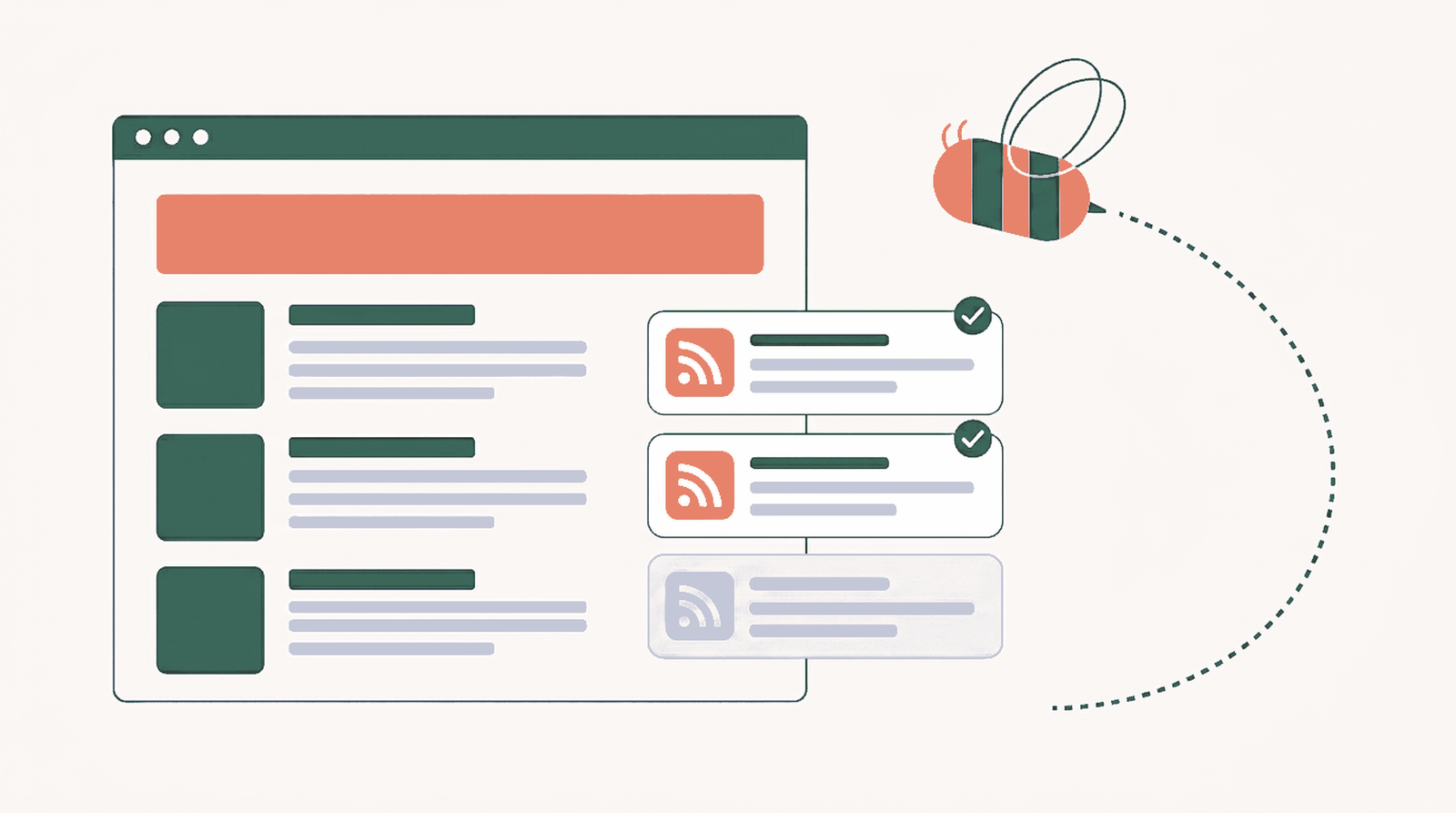
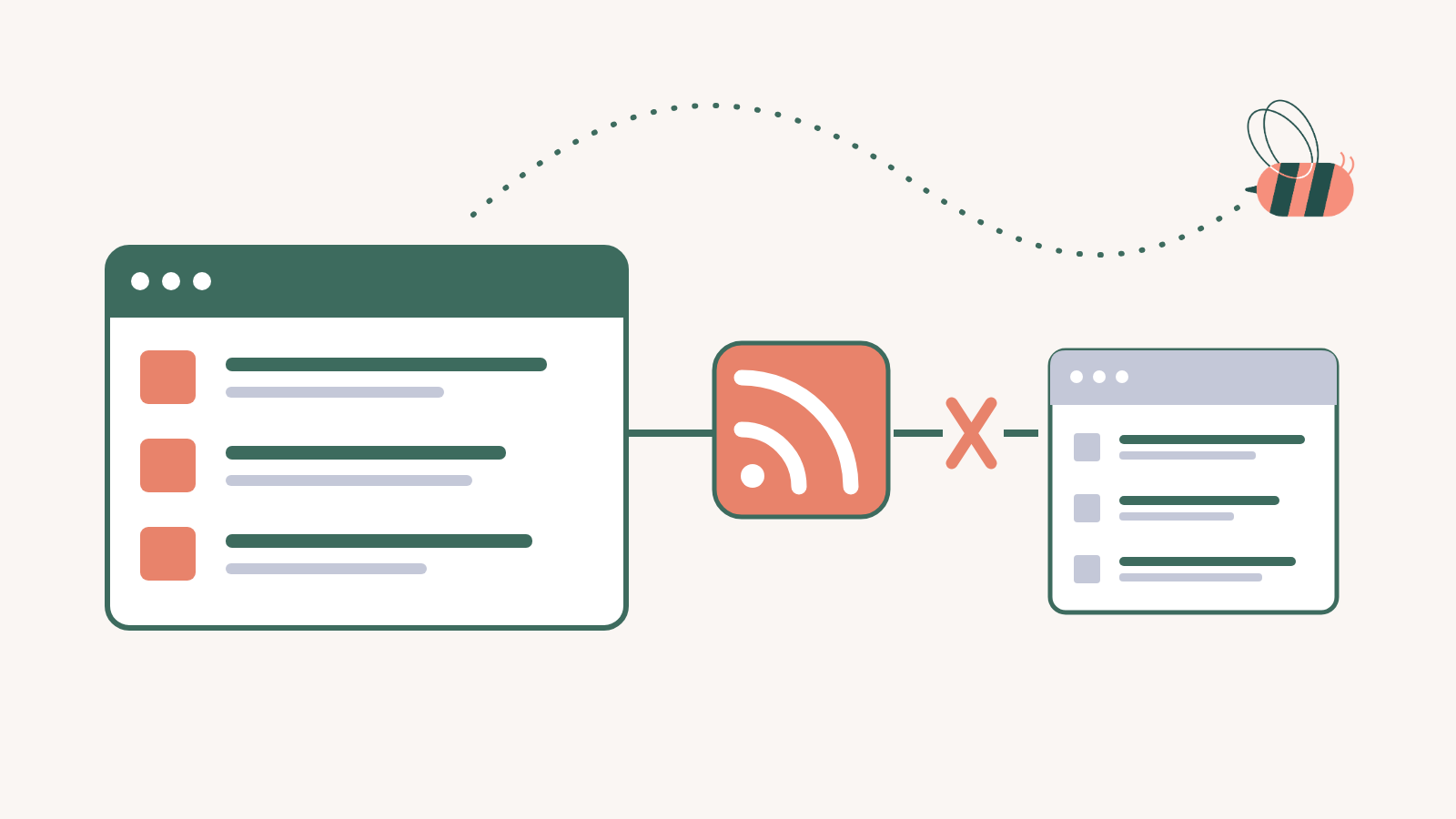
Really Simple Syndication (RSS) feeds are a powerful way to automatically pull the latest content from websites using XML files. With a plugin, like WP RSS Aggregator, you can filter RSS feeds and display the content on your own site, either for personal use or to keep your audience updated. You can do this to curate content for your consumption (this can be a lifesaver for busy people) or for your audience.
Normally, managing feeds manually can be time-consuming, but the right tool can automate the process. WP RSS Aggregator lets you import RSS feeds, filter them based on your preferences, and automatically display the content that matters most, all without lifting a finger.
In this article, we’ll show you how to find RSS feeds, filter that content, and automate their delivery to your site, all using Aggregator. Let’s get to work!
Find & Import The Content You Want To Aggregate
Before you do anything else, you’ll need to find the RSS feeds for the websites whose content you want to import. That means finding the feed’s URL, which is what WP RSS Aggregator needs to import its content.
Here’s an example of what an RSS feed looks like, in pure XML format:

That might not look like much, but an RSS feed can contain some of a website’s most valuable assets (its content) in a format that makes it easy to import using the right tools.
There are a lot of options for finding a site’s RSS feeds. These four methods are the most straightforward:
- Use a free tool such as our Feed Finder to help you find the direct links to a site’s feeds.
- Check if the website has an RSS feed icon or a link related to the feed anywhere within its layout. Some browsers will automatically display feed icons next to the navigation bar if the website has an RSS feed.
- Append the /feed parameter to the URL you’re checking. If you want to see if www.domain.com has an RSS feed, visit the following URL, www.domain.com/feed.
- Right-click anywhere on the site and use the browser’s developer tools to check its source code for words such as “rss” or “xml”, which should guide you to the feed’s URL.
The easiest approach out of all of the above is to use a feed finder tool. Paste the website’s URL into our Feed Finder below and it returns the feed:
Once the tool identifies the RSS feed’s URL, click on Copy URL. Now let’s use WP RSS Aggregator to import that feed’s content into your website.
Note: If you haven’t installed WP RSS Aggregator yet, you can do so by quickly navigating to the WordPress Plugins directory and searching for it or installing it directly from your dashboard. Once that is done, you can continue the process.
To get started, go to the WordPress dashboard and navigate to Aggregator > Sources, then click on Add a new source. Now enter the URL of the feed you want to import in the Details > Source Link field:

While you're at it, you can configure how many items WP RSS Aggregator will import from the feed source simultaneously. By default, the plugin will only import the last 15 items every time it updates the source.
If you click on Import, WP RSS Aggregator will import its content automatically using the plugin’s default settings:

Since we want to automate and filter this process as much as possible, we still have more work to do, so don’t publish the feed source just yet, but remember where that button is.
Set The Post Type & Update Strategy
WP RSS Aggregator enables you to import content from RSS feeds and configure how to republish it on your website. The plugin supports multiple post type options, including posts, pages, custom post types, feed items, and more:

The Post type setting is essential because it decides how you want to re-share content on your website. Posts are the most popular option since it lets you re-share content through your site’s blog.
If you want to publish syndicated content automatically, set the Post status option to Publish (you can also schedule it). Leave the post status as Draft if you want to approve feed items manually.

Now take a look at the Update strategy settings. These options automate importing RSS feed content into your site, including its schedule.
By default, WP RSS Aggregator will import new RSS feed items every hour. You can change the feed’s update schedule using the Update every field:

We encourage you to use automatic updates when fetching RSS feeds because you’ll always have access to the latest content. With a manual setup, if you forget to update the feed, that’s content that your users are missing out on.
If you run into issues updating feeds automatically, it’s most likely due to a cron issue. In that case, you can go to RSS Aggregator > Sources, select a feed, and click on Fetch to update it manually:

That takes care of automation. Now let’s ensure you’re only importing the content you actually care about. To do that, we’ll use filters.
Decide How You Want to Filter the RSS Feed
WP RSS Aggregator gives you multiple options for filtering imported feed content. You can set keywords for importing items or for not doing so.
For example, you can use keywords (or key phrases) such as “promotional”, “sale”, or "discount" to avoid importing promotional offers through the feed. That is the configuration you can see in the automation below:

With WP RSS Aggregator automations, you can set up rules for what content to import or not. Each rule can have one or more conditions and each source can have multiple rules. Take some time to figure out what content you want to import (or not import) from each source and to see what keywords you can use to set up filters for it.
If you want to import content from sources that publish a lot of news, it makes even more sense to use filters. The right keywords will enable you to curate your feed, so consider what options you want to focus on or ignore.
You also get the option to filter what items to import according to tags. This can be a more precise approach if the feed you’re importing items from has a taxonomy system (categories and tags) and actively uses it:

To find out what categories or tags to include, check out the website you’re importing content from. You can figure out what categories and tags to use by going through their navigation menu or by taking a look at the content itself and seeing its taxonomy.
Take our blog as an example, if you’re importing its content, you might only care about some specific category, such as “Website Monetization”. You can use filters with tags to only import articles from that category to your site:

Filters aren’t just great for curating what content you see, but they’re also a key component in automating aggregating RSS feeds. Without using filters, you’d either need to review and approve items manually (which can be slow) or risk showing users content you’d rather they didn’t see.
Figuring out what combination of filters to use can take a while, but it’s arguably a one-time setup. Once the filter is working for one feed, you might not need to touch it again (unless your preferences change).
Put It All Together With Advanced Options
WP RSS Aggregator focuses heavily on automation since aggregating content can be time-consuming. However, the plugin also comes with several Quality of Life (QoL) features that can help you improve the feed content once it’s on your site.
One of those features is author attribution. You can configure this setting when setting up a new feed source and it enables you to either import author information or assign items to existing authors on the site:

In most scenarios, you’ll want to attribute content to its original author and link back to it (even if you’re only importing excerpts). However, you can configure WP RSS Aggregator to use fallbacks in case it can’t import that information or does not import that content at all.
Images are also a key factor in aggregating content. In most cases, images play a key role in making that content easier to read or navigate. WP RSS Aggregator enables you to configure whether to import images or not and to set the minimum dimensions for which files to import. This is important since otherwise you can end up importing icons, avatars, and other media files you don’t need:

If you plan to curate one or more feeds and import their image files, you might want to look into image optimization plugins. Some of them will automatically compress images when you upload them to the media library, which can help a lot with site performance and storage savings.
Quick tip: If you use the Pro version of WP RSS Aggregator, you also get the option to import the full text of the content from feeds with no limits.
That means entire articles instead of short excerpts, which can help you retain users on your site as they won’t need to visit another to keep reading.
Speaking of excerpts, WP RSS Aggregator includes a setting that enables you to import existing ones (if the source site has them). Without this option, the plugin will use the start of the content as its excerpt:

There are a lot of cool things you can do with WP RSS Aggregator and we have tutorials on how to add different types of sources using the plugin. Take the time to go through its settings and see how far it can get you in terms of automating content aggregation and curation.
Conclusion
If you want to use WP RSS Aggregator effectively, configure feed update settings that make sense for each source and use filters. Using filters, you can effectively curate content without lifting a finger (beyond configuring the plugin).
WP RSS Aggregator also gives you several options for customizing how content looks after you import it. You can choose what to do with author information, excerpts, images, and much more.
Overall, the plugin gives you full control over how you import content from RSS feeds and how to showcase it on your site. To access all the features WP RSS Aggregator has to offer get a premium license and start using it today!