
The Attribution settings under the Advanced tab when creating or editing a source allow you to manage how attribution information is displayed within the imported posts.
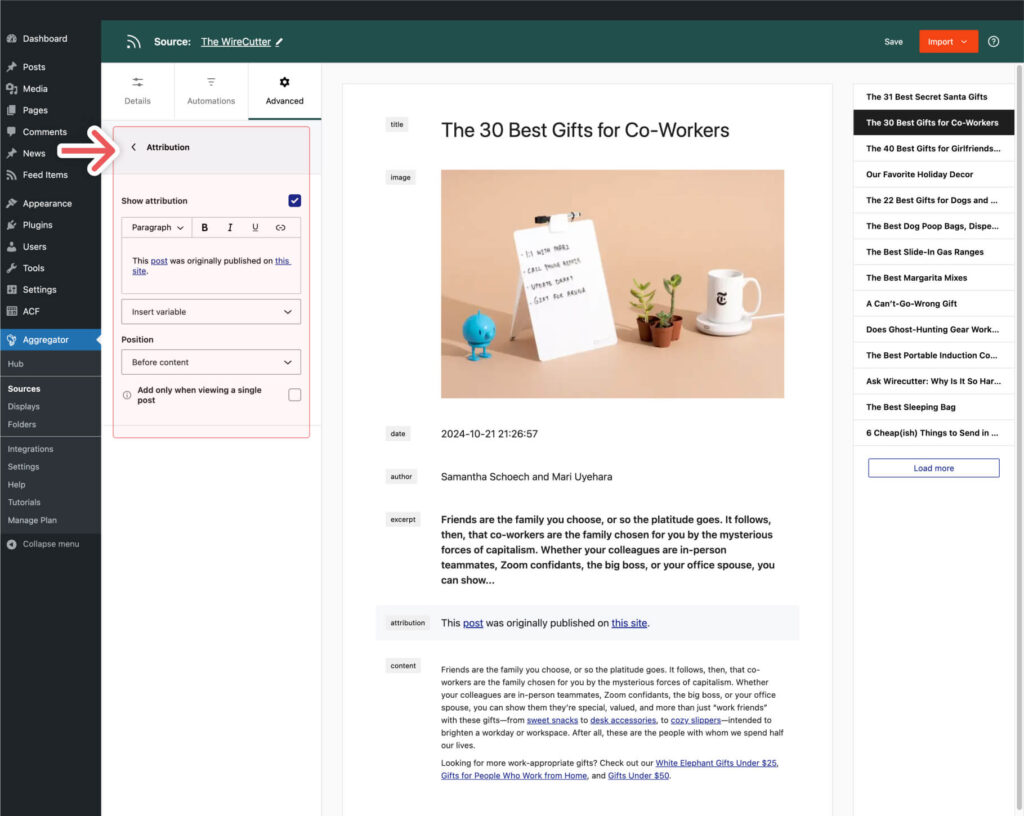
Show Attribution
Set whether attribution is displayed for the imported content or not. Attribution is a clean and respectful way of giving credit to the original creator of the content when displaying it on your site.
Further Reading: Best Practices for Posting RSS Feeds to WordPress
Attribution Text
Customize the attribution text using the text editor provided. You can format the text using options such as bold, italic, and underline, as well as add links. There are also variables available to have the content and links set dynamically for each feed item.
Insert Variable
This setting allows you to customize the attribution text by using various variables. These variables can be inserted into your attribution to dynamically display relevant information.
Here’s the list of currently available variables for attribution:
- Source name: Display the name of the source from which the content was imported.
- Source URL: Display the URL of the source.
- Post title: Display the title of the imported post.
- Post URL: Display the URL of the imported post on your site.
- Original Post URL: Display the URL of the original post.
- Post date: Display the original publication date of the post.
- Import date: Display the date when the content was imported.
- Author name: Display the name of the author of the post.
- Author URL: Display the URL of the author’s page or profile.
- Featured Image URL: Display the URL of the featured image of the post.
- Post meta: Display any custom post metadata.
Note: The Post date and Import date variables use the date format, time format, and timezone from your WordPress settings under Settings › General.
Position
Choose where the attribution text will be placed within the post content. Your options are:
- Before the content: Display the attribution before the post content starts.
- After the content: Display the attribution after the post content ends.
Add Only When Viewing a Single Post
This option allows you to display the attribution text only when viewing a single post, not on archive or list pages such as the default Blog page on WordPress sites.
Styling the Attribution
The attribution is added to your posts inside a dedicated HTML container, which means you can customize its appearance with your own CSS without changing the attribution text itself.
CSS Selector for the Attribution
The attribution is wrapped in a container with the following class:
CSS Class: .wpra-attribution
HTML Structure
When displayed on your site, the attribution uses a structure like this:
<div class="wpra-attribution">
    <p>Originally published on <a href="https://example.com/">Source name</a>.</p>
</div>
This is the element you can target when applying custom styling. The same container is used in the source preview, so you can check the structure there before viewing an imported post.
Example CSS for the Attribution
Use the CSS below to display the attribution as smaller, muted text with a subtle line above it:
.wpra-attribution {
    margin-top: 24px;
    padding-top: 12px;
    border-top: 1px solid #ddd;
    font-size: 0.9em;
    color: #666;
}

.wpra-attribution a {
    color: inherit;
    text-decoration: underline;
}
Add it under Appearance › Customize › Additional CSS in your theme, or under Styles › Additional CSS in the Site Editor if you use a block theme. You can adjust the colors, spacing, and font size to match your site.
Use these settings to provide clear and accurate attribution for the content you’re importing, ensuring that original sources and authors are properly credited while maintaining the aesthetic and functional integrity of your site.
