
When setting up a source, the Advanced > Tags settings allow you to automatically assign tags to your imported posts (or any custom post type). This feature provides flexibility in how you organize and categorize imported content based on the rules you set. You can apply tag rules both from your site and the source, or a combination of both, with optional conditional logic to fine-tune the tagging process.
Add a Tag Rule
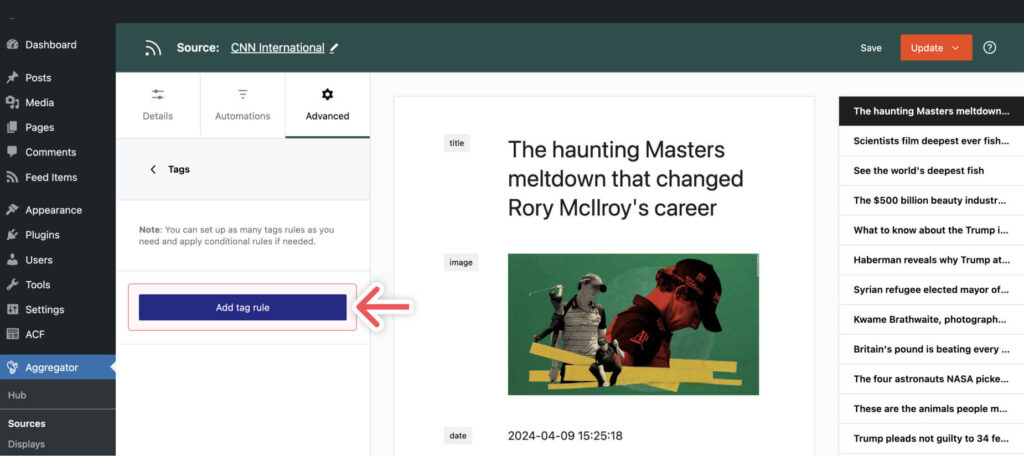
To automatically assign tags to imported posts, click on the Add tag rule button. This will open a rule builder with a number of options.
Choose a Method
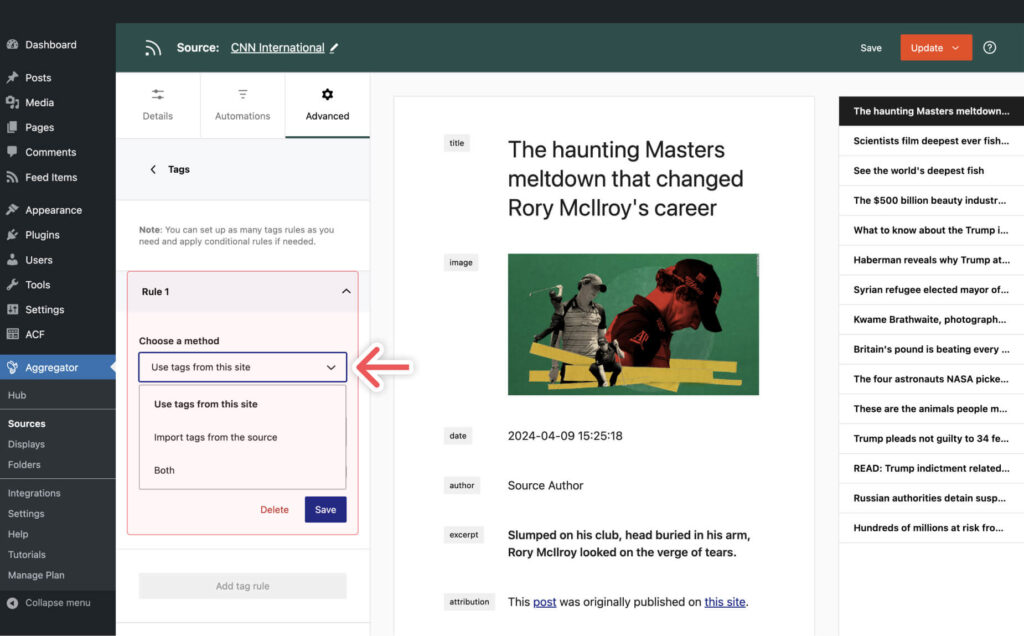
The rule builder offers 3 options for creating a tag rule:
- Use tags from this site: Select tags already available on your WordPress site for the post type you chose in the source’s
Detailstab. If you don’t have any tags created yet, you can create them on the fly by entering their name in theSelect tagfield.- Tags created on the fly will have an asterisk beside them before saving the source.
- Import tags from the source: Automatically import each item’s tags from the source’s RSS feed and create a tag for each one on your site.
- Both: Use both tags from your site and those imported from the source.
Select Tag
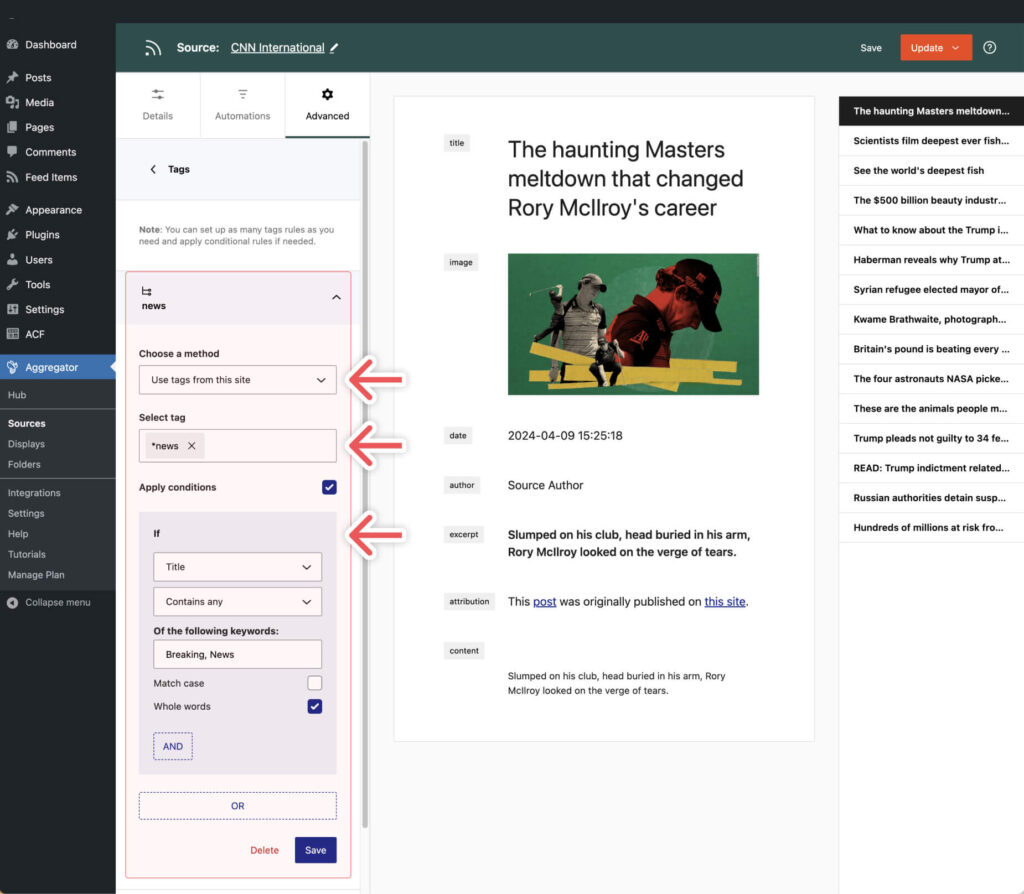
If you choose to use tags from your site, a dropdown menu will appear where you can start typing the names of tags and select the appropriate ones for the imported posts from this source. For example, you might tag news items as “News” and sports-related articles as “Sport.”
Apply Conditions (Optional)
You can also add conditions to further refine how each tag is applied. This allows you to create specific rules based on the content of the posts. For example:
- Title contains: Apply a tag if the title contains specific keywords or phrases.
- Content does not contain any: Avoid certain tags if specific words are absent from the post’s content.
The full list of conditions is found below:
- If: Title / Content
- Is / Is not / Contains all / Does not contain all / Contains any / Does not contain any
Once you set the condition, you simply need to enter the relevant value.
Example Use Case
You’re importing news from multiple sources. For a CNN source, you set up a rule to tag all posts as “News” if the title contains words like “Breaking” or “Update.” You could add another rule to tag sports-related articles as “Sport” if the title contains words like “Football” or “Tennis.”
Adding Multiple Rules
You can set up as many tag rules as needed for each source. For example:
- Rule 1: Assign all posts with the word “Tech” in the title with the “Technology” tag.
- Rule 2: Assign all posts containing “Politics” in the content with the “Politics” tag.
These advanced tag settings allow you to manage and organize imported content more effectively, ensuring that posts are automatically tagged based on the criteria that best suit your website’s needs.
