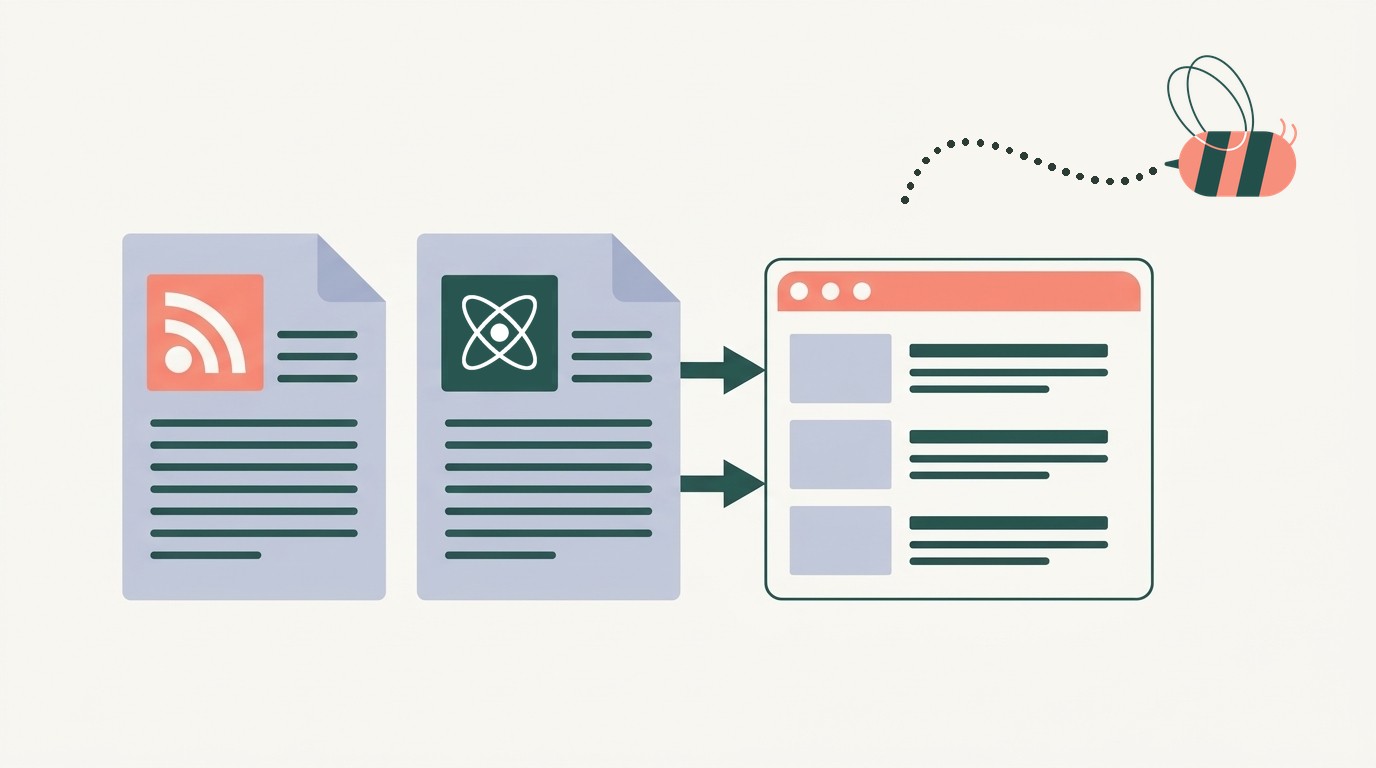
cryptoheadlines.com
Crypto news from more than 20 outlets, sorted by topic
 WordPress
 Aggregator ProCustom front end
Most news aggregator sites are a long list of links to other sites. Readers get a headline and little else.
Cryptoheadlines.com gives readers more. They get the day’s crypto news on one page, sorted by topic, with every article credited to the outlet that wrote it. On 17 November 2026, one story there held 104 articles from 23 outlets.

The short version
- Add the outlets you follow as sources.
- Import posts that credit and link to the original.
- Use keywords to keep imports on-topic.
- Add AI summaries within your credit budget.
- Put topic displays together on one page.
What’s Aggregator Pro, and what’s custom
Aggregator Pro brings in the articles from every outlet. The site’s own code then groups articles about the same event and ranks the stories. It also adds the mood bars, price displays and hourly roundup.
The five moves below cover the Aggregator Pro part, with no code. Developers can follow the build guide or the site’s how it’s built page for the rest.
Move 1: Collect your sources in WordPress
Cryptoheadlines.com collects feeds from outlets such as CoinDesk, The Block, Decrypt and Cointelegraph. When we looked on 17 November 2026, 47 of its top 60 stories had coverage from several outlets.

Aggregator Pro checks the feeds on a schedule and skips items it has already stored. Each item keeps its headline, excerpt, publish time, image, source name and original link.
It also handles messy feeds. You can add, pause or replace sources from the WordPress dashboard.
The site’s owner, Jean Galea, chose WordPress for this import layer. As he put it in his build guide: “WordPress still does the hardest, most boring part of a news site better than anything I’d write from scratch.”
Set it up on your site
- Enter an outlet’s homepage URL in Feed Finder and copy its feed address.
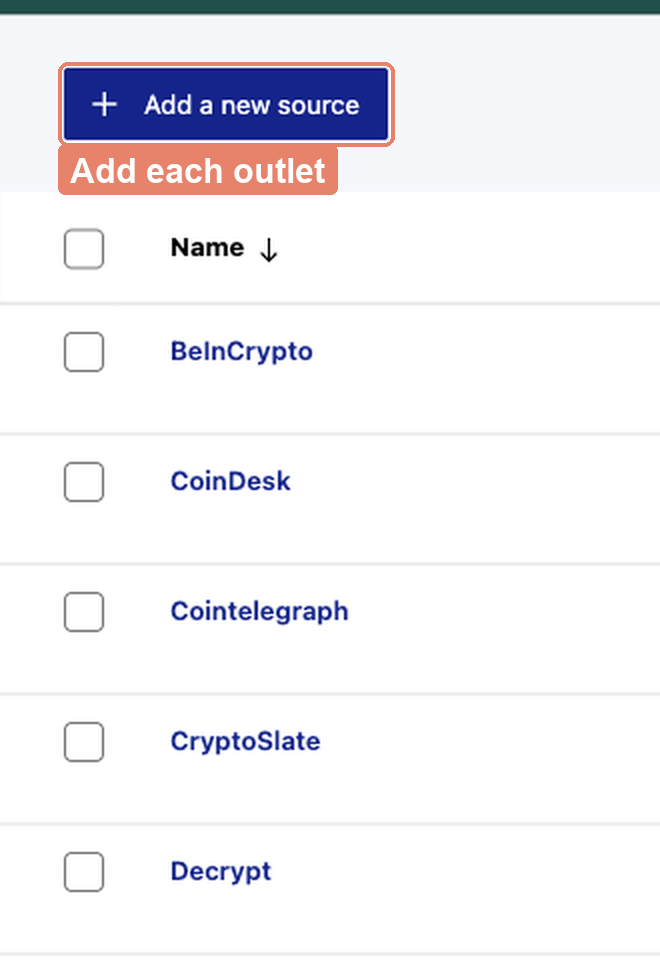
- In the WordPress dashboard, open Aggregator, then Sources. Click Add a new source and add the feed. Our guide to adding a source covers each field.
- Under Update strategy, choose how often to check it. Repeat for your other sources.
Move 2: Import posts that credit the source
Cryptoheadlines.com stores the articles as feed items. Each one keeps the outlet name and a link to the original.

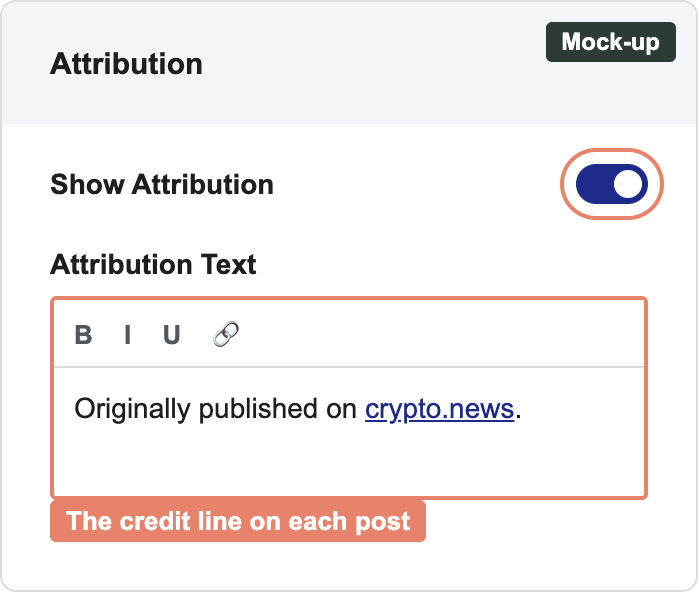
For your site, Feed to Post can turn imported articles into WordPress posts. They appear in your theme and site search, and Pro can add a credit line linking to the original.
Turn on Set canonical link to identify the original article as the primary version for search engines. These imported posts give readers a way to browse news on your site.
If you import full articles, check each outlet’s terms first. Republishing a whole story can need the publisher’s permission. Our guide to posting RSS feeds to WordPress covers attribution and full-text import.
Set it up on your site
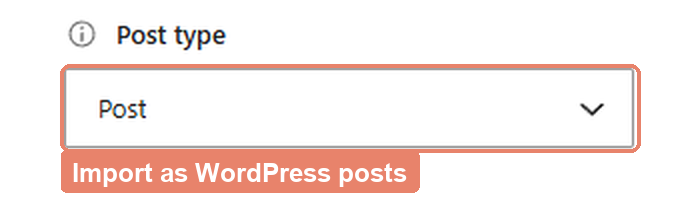
- Open a source and set Post type to Post.
- Choose Post status. Use Draft to check imports before they go live, or Published to publish them as they arrive.
- Turn on Set canonical link. See canonical links for what it changes.
- Go to Advanced, then Attribution. Turn on Show Attribution and edit the Attribution Text to name the outlet and link to the original. Save and fetch the source. The attribution guide lists the text options.
For a longer walkthrough, read how to import RSS feeds into WordPress posts.
Bring the feeds you follow into WordPress
Aggregator Pro imports posts from your sources on a schedule and adds a credit line linking to each original.
See the Pro plan
Move 3: Filter imports by keyword
A source may cover more than your readers need. On 17 November 2026, a story about Anthropic’s business led the cryptoheadlines.com data feed, with coverage from 17 outlets.
The site files stories by topic. Its Regulation page shows how a topic gives readers a smaller set of stories to browse.

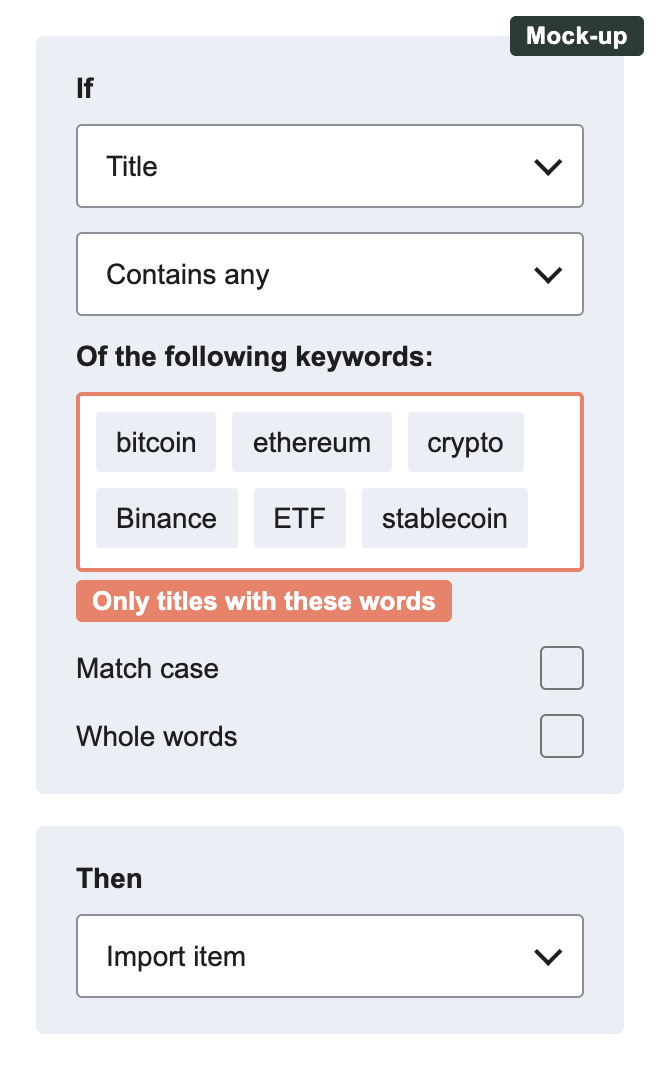
For your imports, Aggregator Pro can check titles for keywords before saving an article. Choose the words that fit your subject in the source’s Automations tab.
Set it up on your site
- Open the source’s Automations tab.
- Choose Title, then Contains any. Enter your keywords.
- Set Then to Import item and save. Articles without a matching word stay out.
For more examples, read our guide to filtering RSS feeds.
Move 4: Add summaries within your budget
The cryptoheadlines.com homepage opens with a roundup, written by the site’s own code. Each sentence links to the article behind it, so readers can check the source.

On your imported posts, Aggregator Pro offers AI Summaries and AI TL;DRs. AI Summaries adds a short paragraph. AI TL;DRs adds bullet points so readers can scan the main points.
The one-site Pro plan includes 500 AI credits a year, or about 40 a month. Each summary or TL;DR uses one credit. Our page on AI credit usage explains what else counts.

Refreshes use credits too. This includes clicking Fetch or Update when a source is set to keep items up to date.
On our test site, one CoinDesk fetch brought in 25 articles. Start with one source and filter its imports before turning on summaries. Extra credit packs are available if you need more.
Set it up on your site
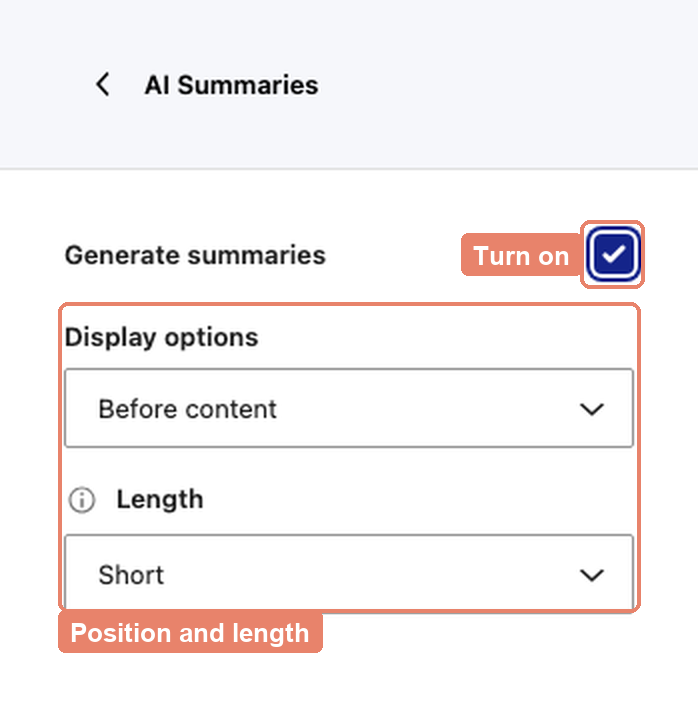
- Open your filtered source. Go to Advanced, then AI, then AI Summaries.
- For a short paragraph, tick Generate summaries. Choose where they appear and how long they are.
- For bullet points like the example above, use AI TL;DRs on the same source instead.
- Under Credit Strategy, choose Import items without AI summaries. New articles can then keep arriving when credits run out.
Move 5: Put news topics on one page
Cryptoheadlines.com breaks the news into sections, as in the screenshot at the top. Readers can browse markets, Bitcoin, regulation, DeFi and security.
In WordPress, you can make one Aggregator display for each topic. Stack the displays under headings on a single page so readers can find the news they came for.

Set it up on your site
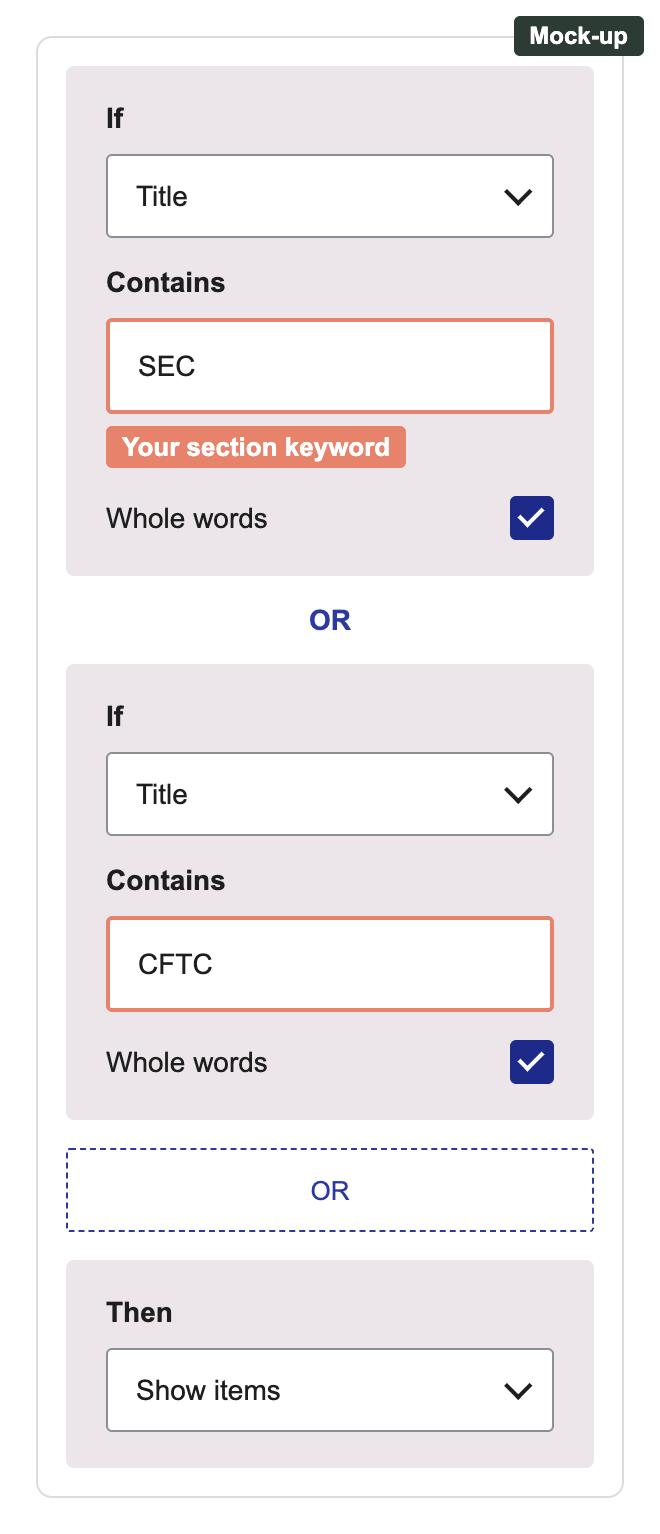
- Open Aggregator, then Displays. Click Create a new display and choose your sources.
- Open Filtering. Choose Title and enter a topic keyword under Contains, such as SEC.
- Tick Whole words. This keeps a word such as SEC from matching security.
- Set Then to Show items. Add other keywords with OR, then save. The filter matches your words, not related terms. See display filters for more rules.
- Make a display for each topic. Add them to one page with the Aggregator block, each under its own heading.
Start with one feed
Add one outlet as a source today and import a day of posts as drafts. Check what comes in, then add your keywords, summaries and topic pages.
Add a few more outlets, and you have a news page readers can check every morning.
Turn your feeds into a news page
Pick the outlets you trust. Aggregator Pro brings in their newest stories, keeps them on-topic and adds summaries, each one credited and linked to the publisher.
Get Aggregator Pro